

WAWF Access & Registration

Last updated: Jun 09, 2024
59
views

Hello, this article will walk you through requesting WAWF access and getting registered.
Note: Your manager must submit a helpdesk ticket to approve your request for user access to WAWF. Once approved, follow the instructions below to register and request access.
- Navigate to the PIEE website.
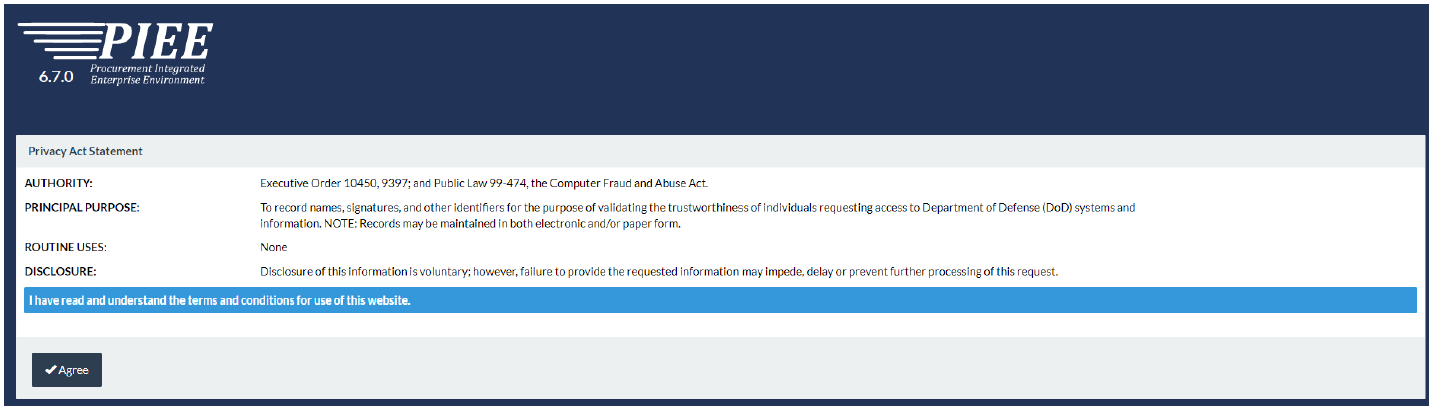
- Read the privacy statement and click Agree.
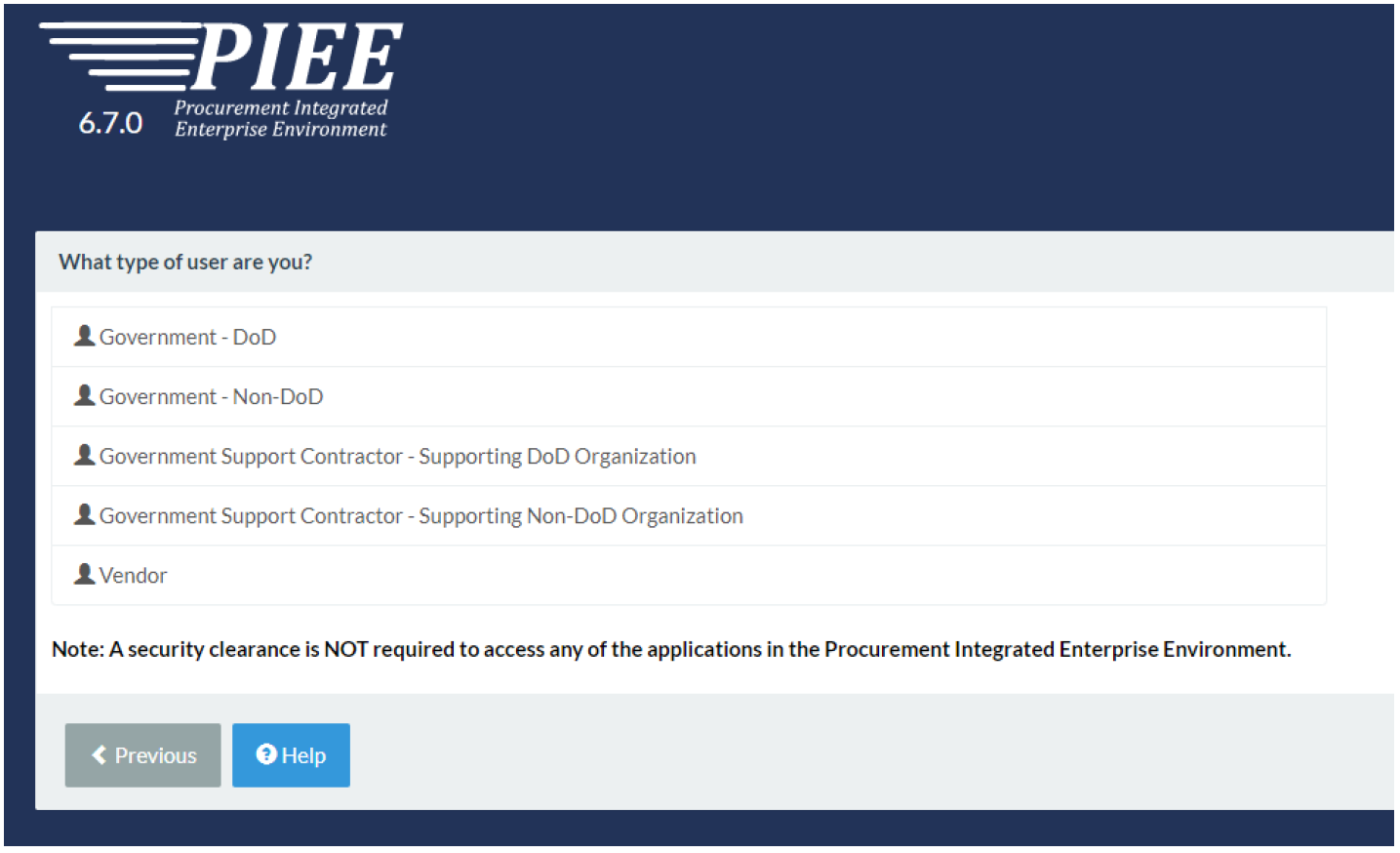
- Select the user type Vendor.
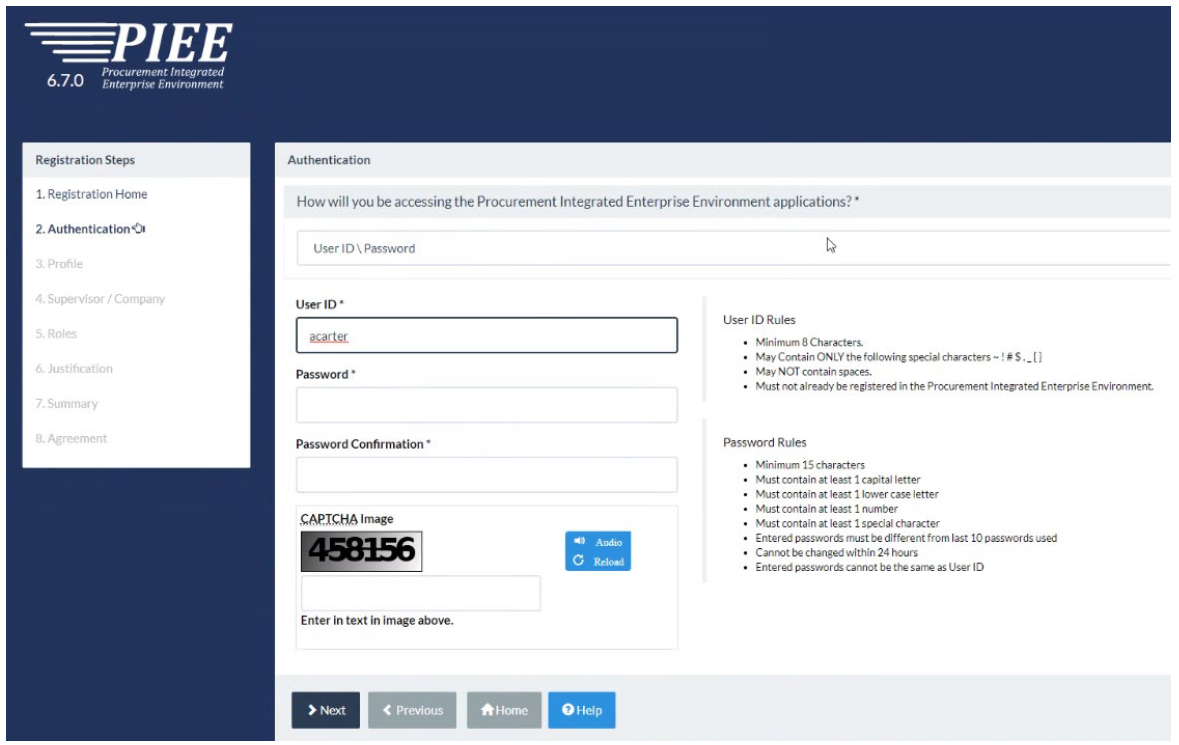
- Create your user credentials and click Next.
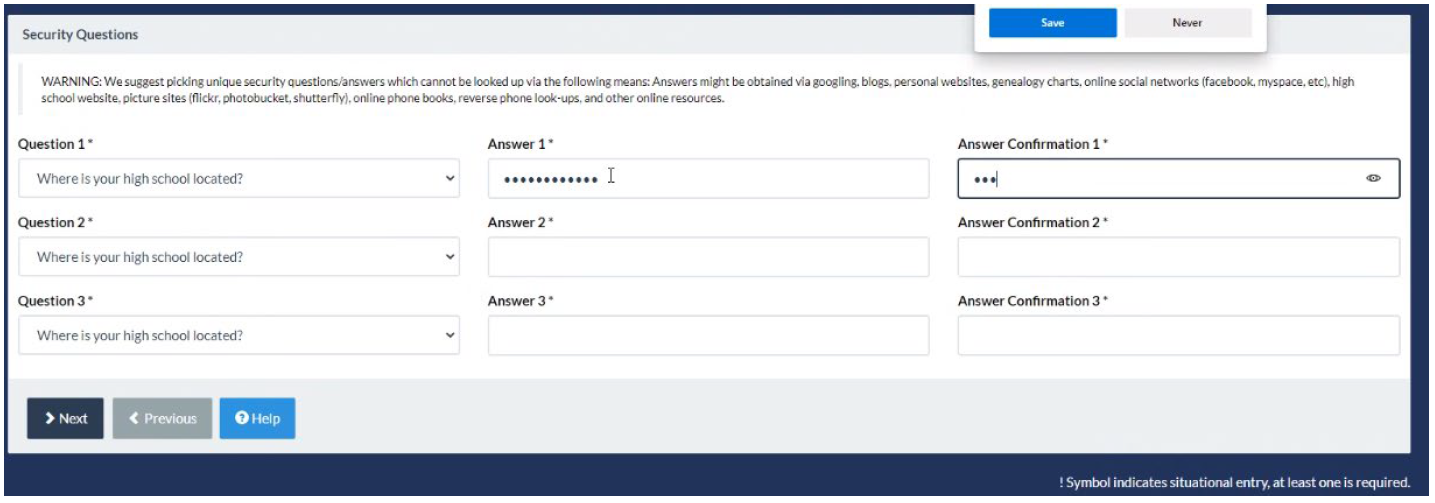
- Fill out the security question fields and click Next.
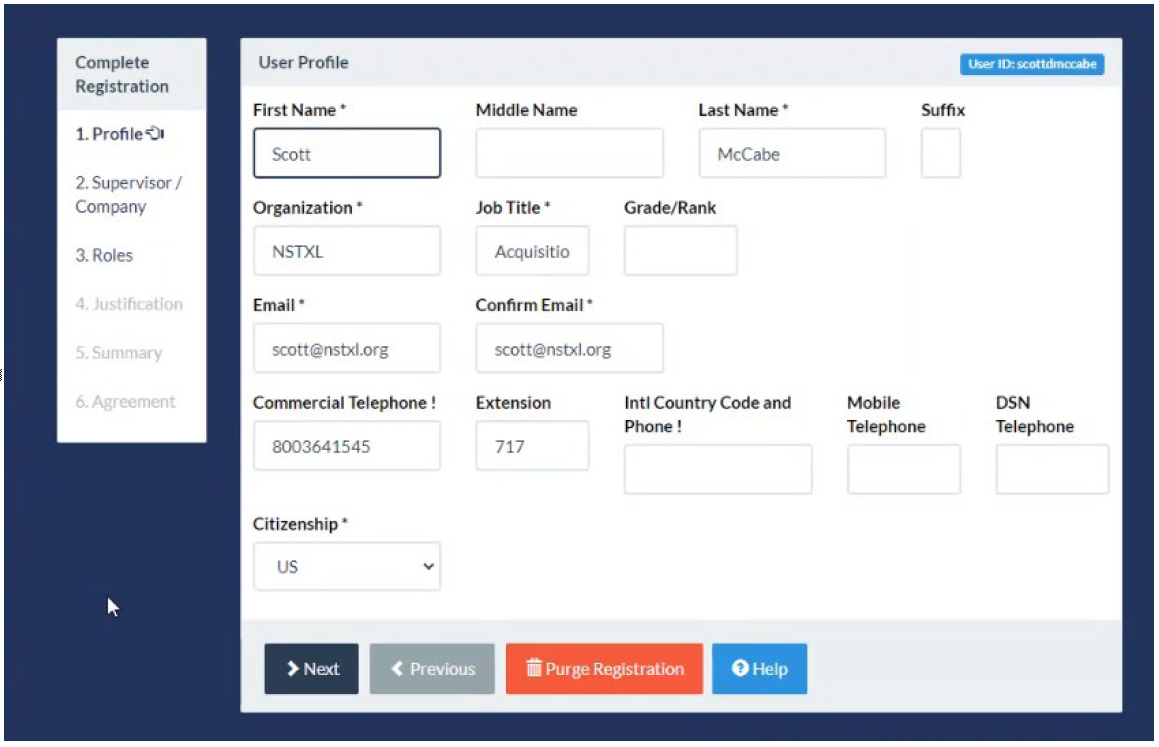
- Fill in your profile information and click Next.
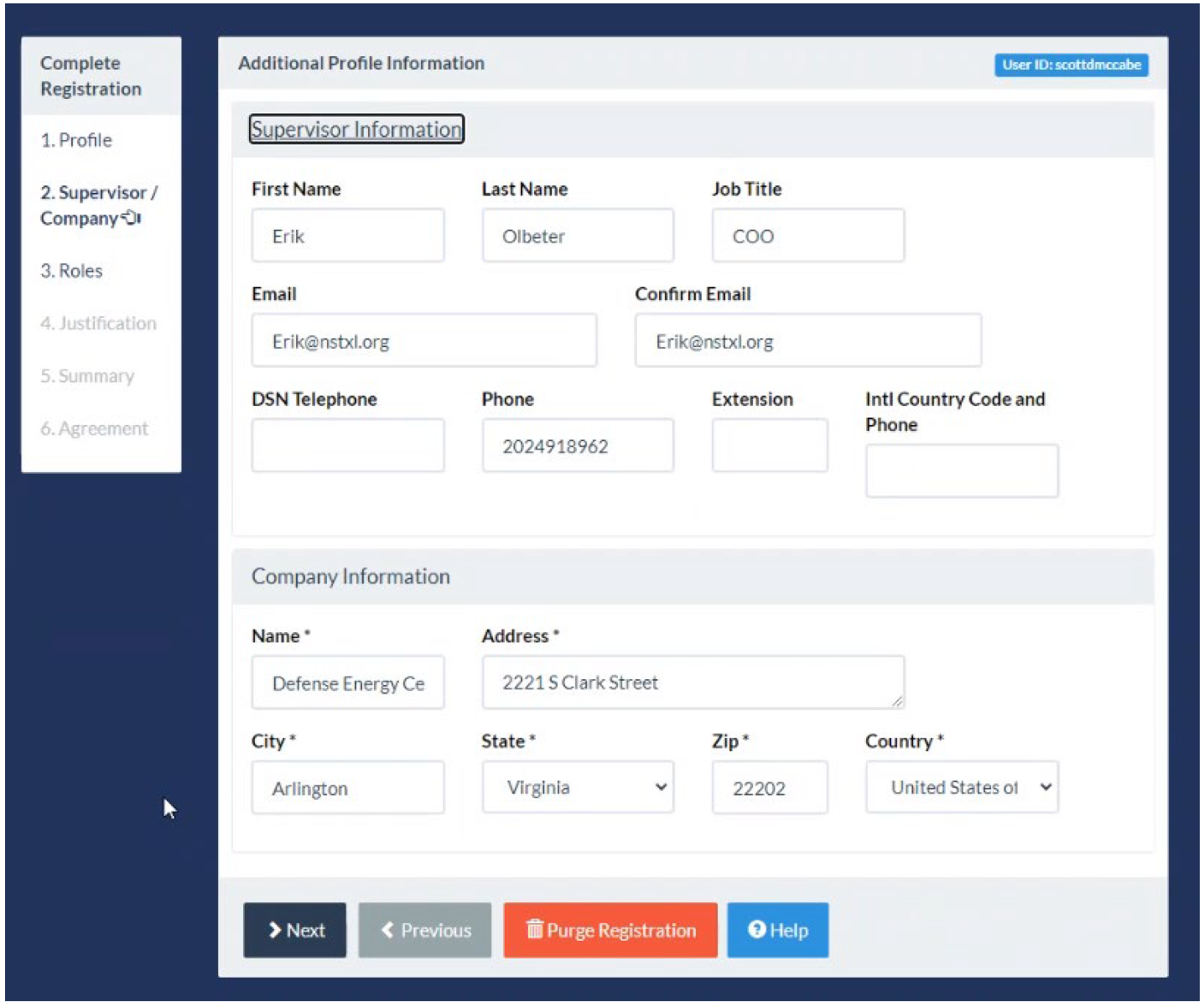
- Fill in the supervisor information fields using the following:
Name: Laura Collman
Title: VP Operations
Email: [email protected]
Phone: 8003641545
Extension: 713
Company Name: National Security Technology Accelerator
Address: 7835 S West Gate Rd, Scotland, IN 47457-3700
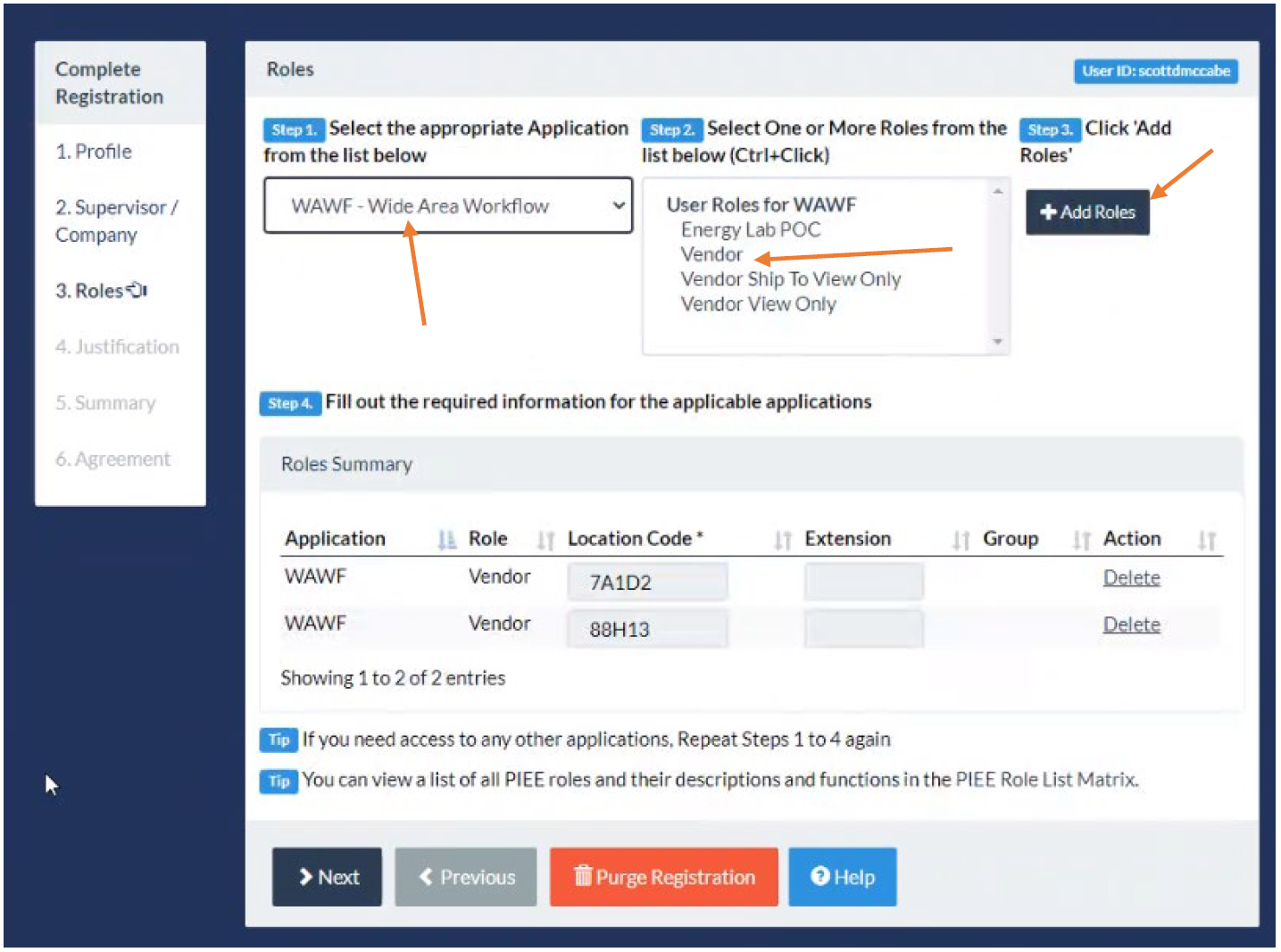
- Select WAWF for Application, select Vendor, and click +Add Roles.
For the Vendor Location Codes:
S2MARTS: 88H13
TrEX: 7A1D2
(click Next)
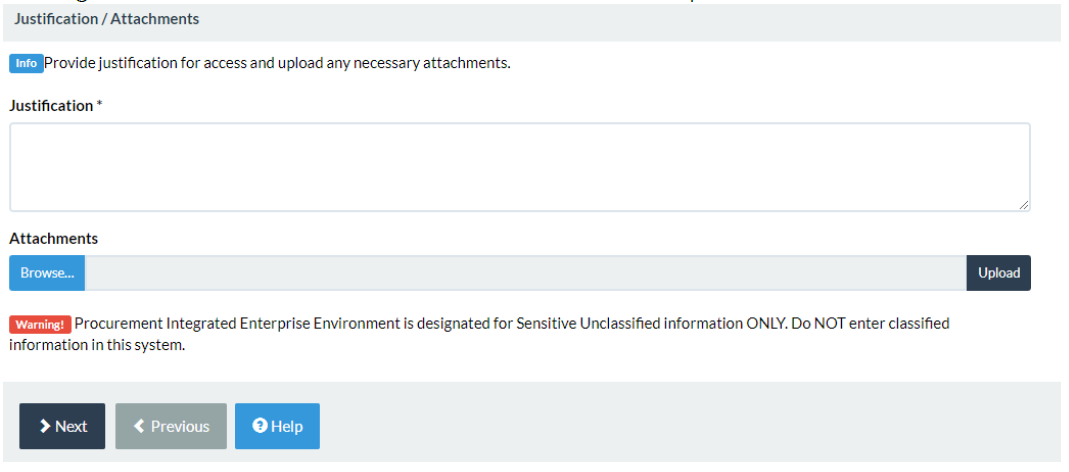
- Fill in the Justifications field. For example: Accounts Payable Analyst working on the 7A1D2 and 88H13 contracts for NSTXL.
Once completed, click Next.
- Review your summary page to ensure all information is accurate, then click Next.
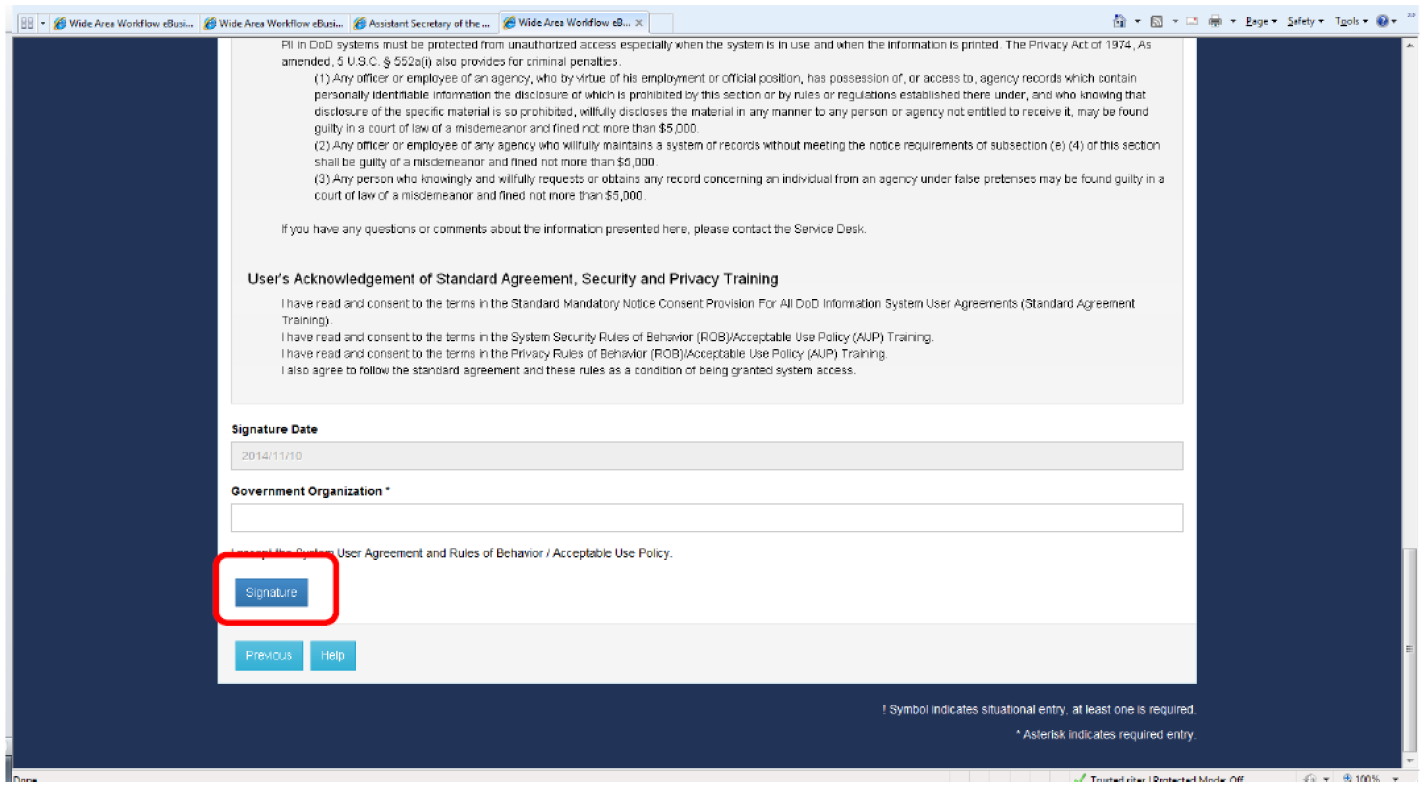
- Read the Statement of Accountability Agreement and sign it.
- You should receive a confirmation email that you have registered. Once approved, you should receive a second confirmation email regarding your approval.

