PreVeil Account Creation

Last updated: Jul 25, 2024
114
views

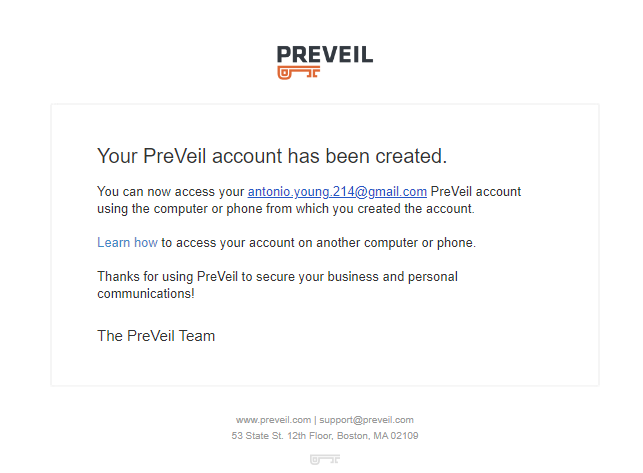
- Email invitation received. Select “Create Account”
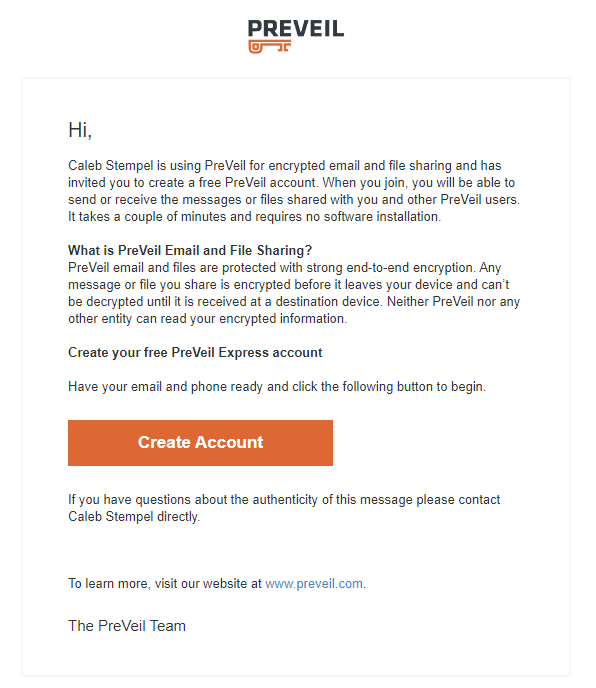
- Confirm you are not a robot and click “Send Verification Email”
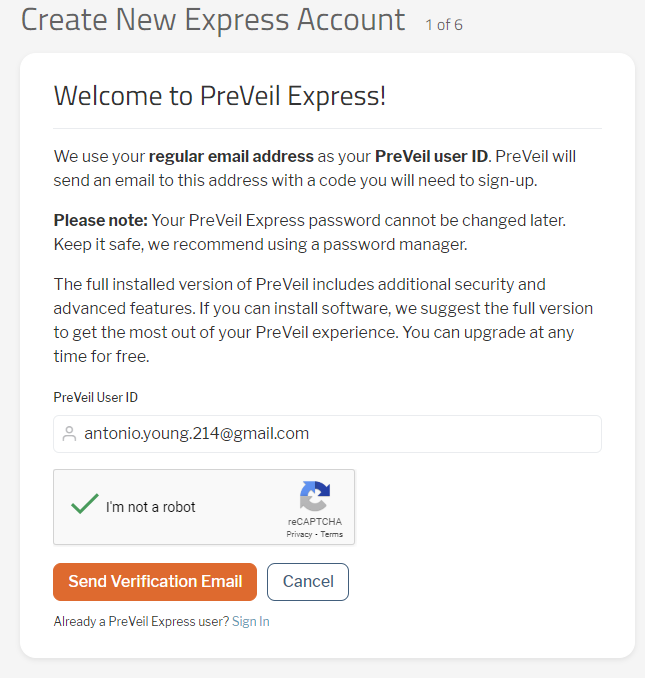
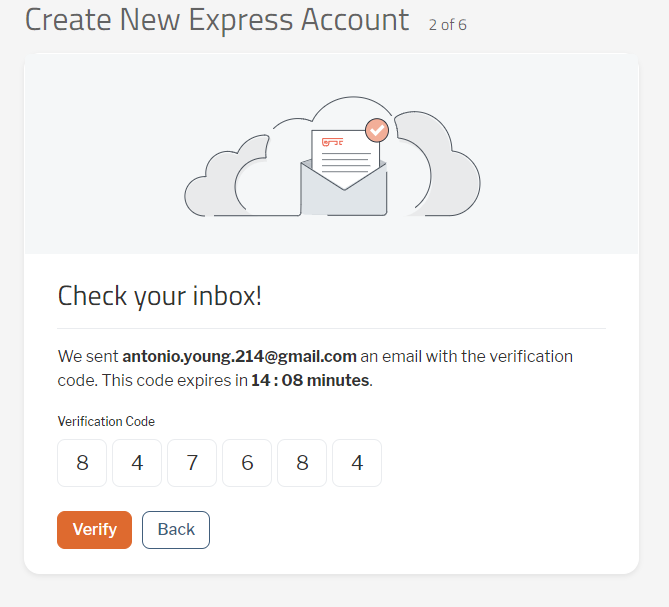
- You should get an email with the Verification code; Enter the code then click “Verify”
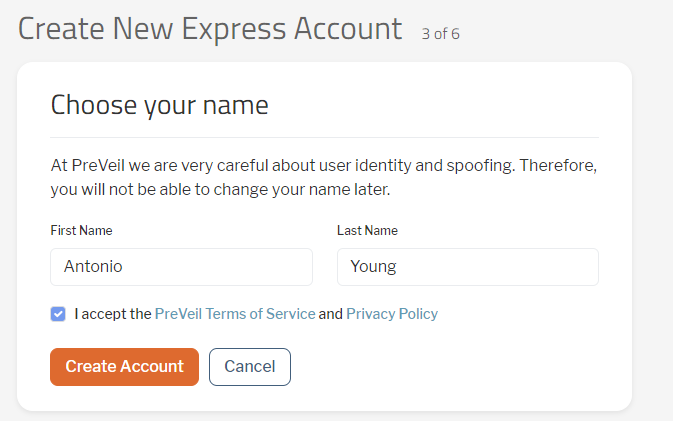
- Enter First and Last name, review terms and policy then check box to accept, then click “Create Account”
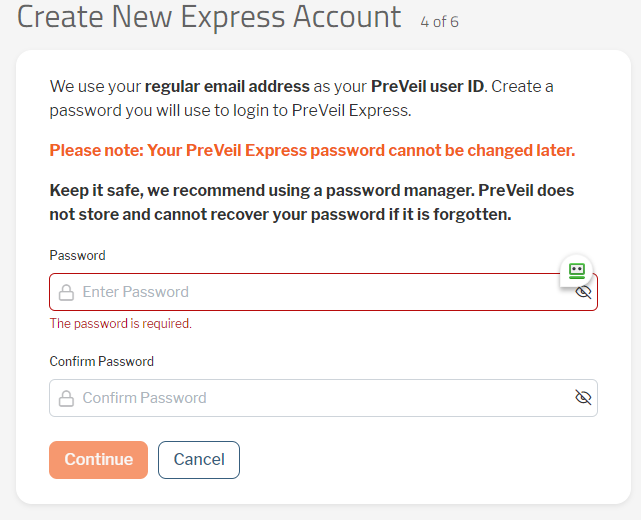
- Create a password meeting the requirements then select “Continue”
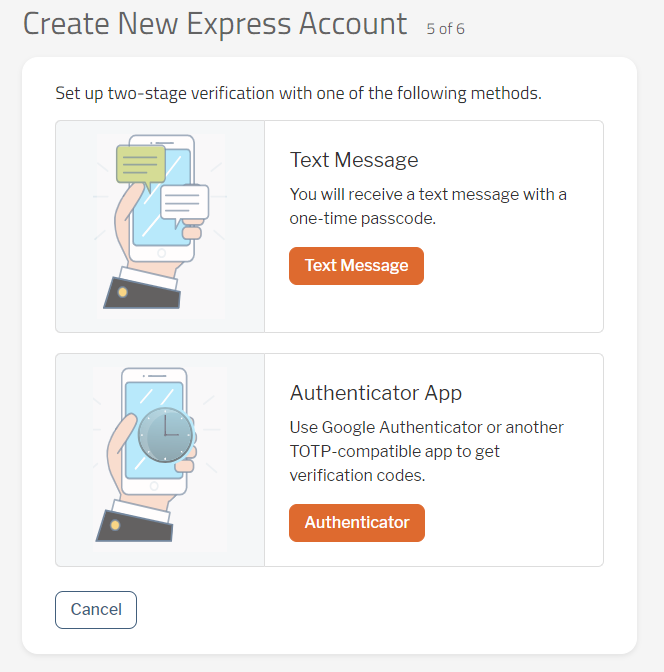
- PreVeil account requires two-stage verification. You can select either of the options presented, depending on your preference but recommendation is to use “Text Message” (that way if phone is replaced, there’s no issue with Authenticator App)
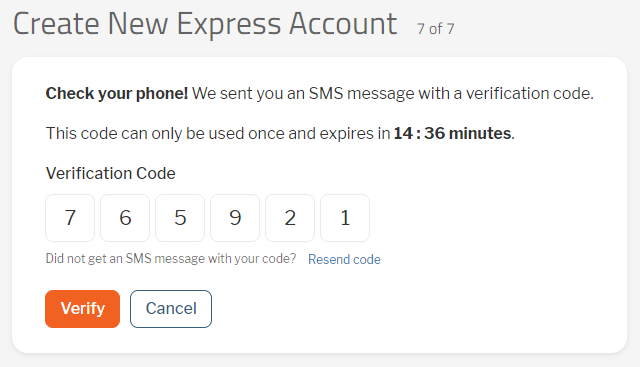
- Enter code and click “Verify”
- The only way to reset your password is with an Account Recovery File. Please select “Save Now” to save this file someplace for safe keeping.
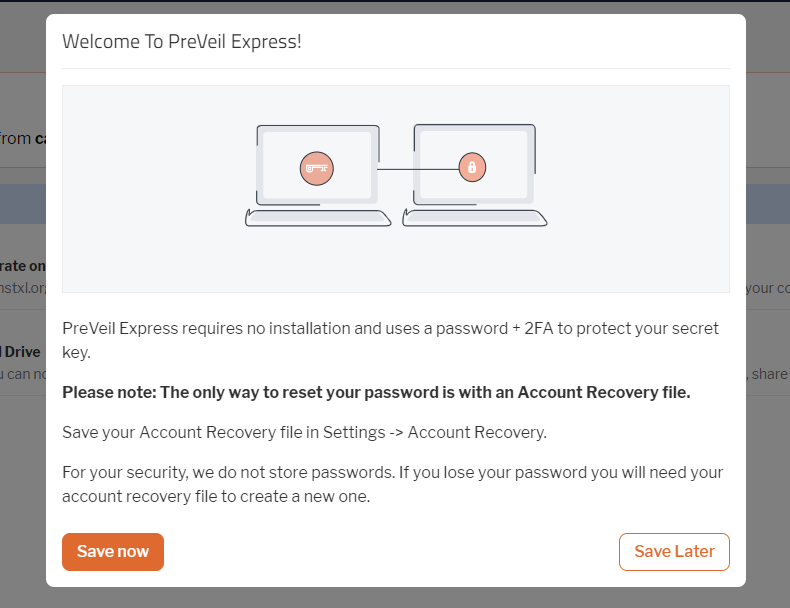
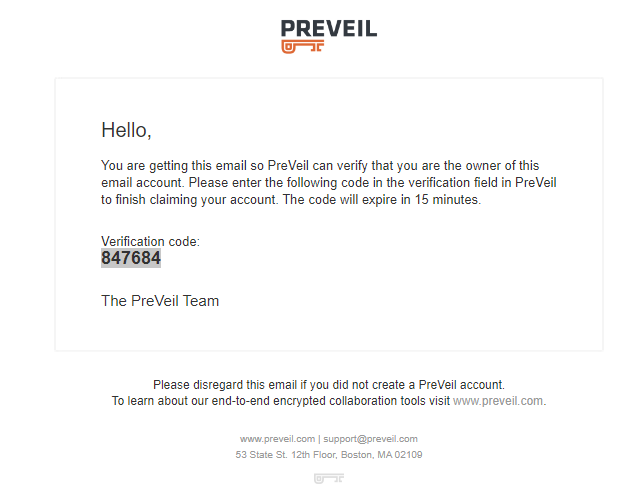
- Congratulations! Account has been created.