


Hello team! This article will walk you through some of the common tasks to utilizing phone service through Teams.
Contents:
- Sending & Receiving Calls
- Missed Call Notifications & Call History
- Transferring Calls
- Voicemail
- Useful Settings
Sending & Receiving Calls
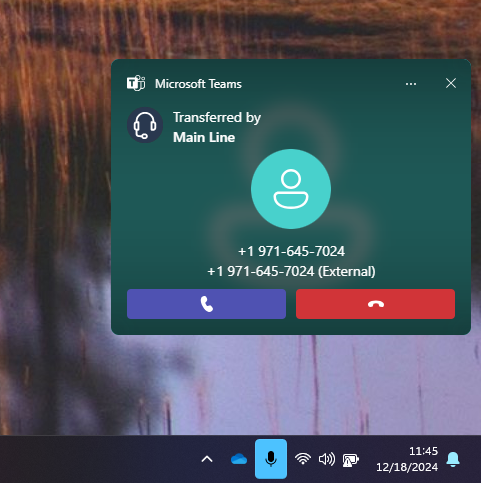
Receiving a phone call in Teams works just the same as receiving a voice call from another Teams user. You will see a notification pop up indicating who the call is from. Once connected, you will see the same call/meeting window with the same buttons and controls.
Dialing out is as simple as going to the Calls tab in Teams and using the dialing pad. Below the dialing pad you will see your extension.
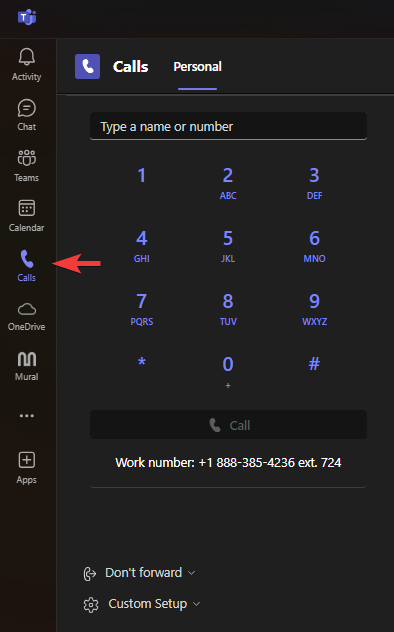
(the "work number" in the screenshot is a temporary number used in testing, you will see the normal business number)
Missed Call Notifications & Call History
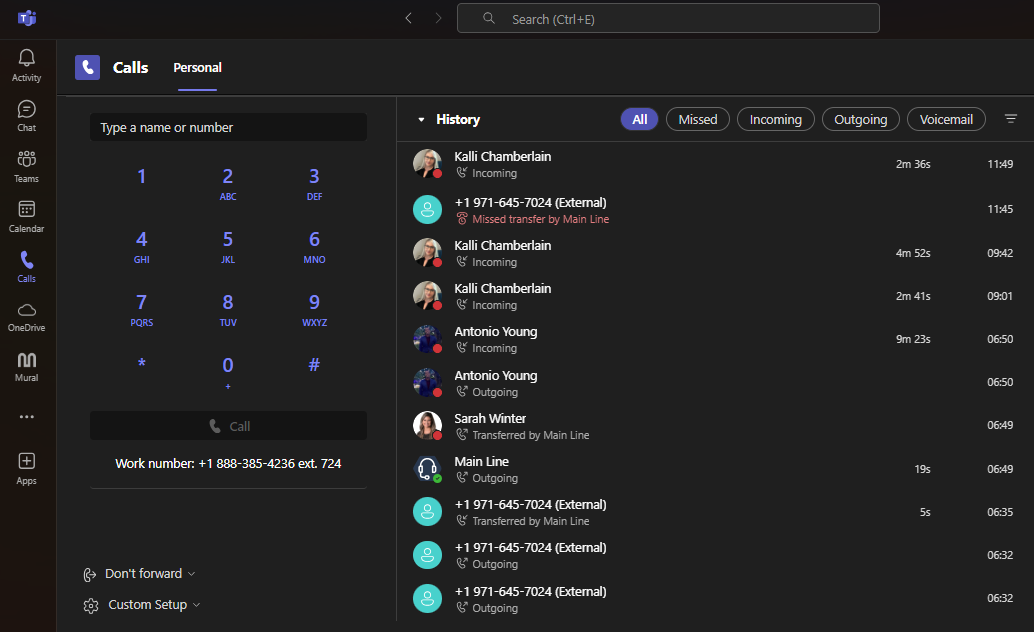
On the Calls tab, the History section appears to the right of the dialing pad. There are filter options above that allow you to quickly sort the list.
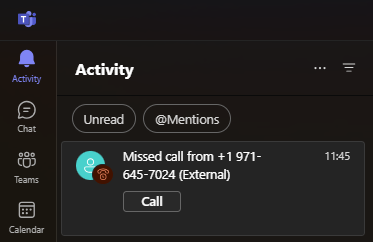
Similar to other important Teams notifications, missed calls will also appear on the Activity tab.
Transferring Calls
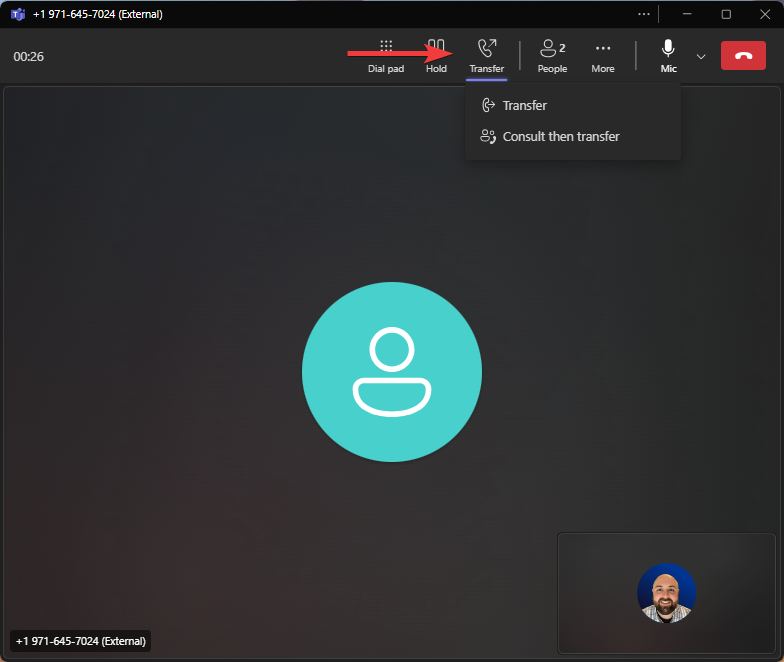
When connected to a phone call, you can select the Transfer option from the menu at the top and select either Transfer or Consult then transfer.
- Transfer will immediately transfer the call to another person.
- Consult then transfer will put the caller on hold while you call another person. Once you have briefed them, you can proceed to transfer them the phone call.
In the Transfer menu that pops up, you can select from suggested people, search for a person, or enter a phone number for forwarding.
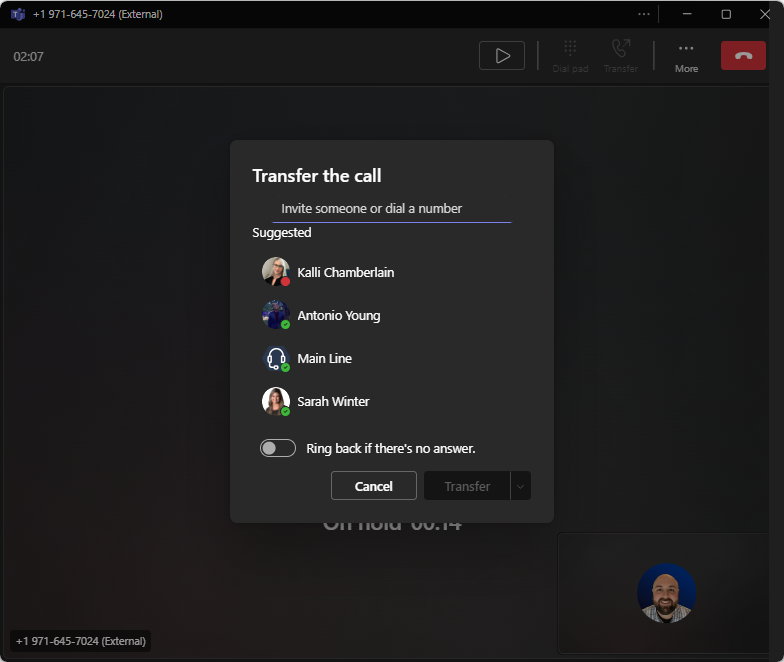
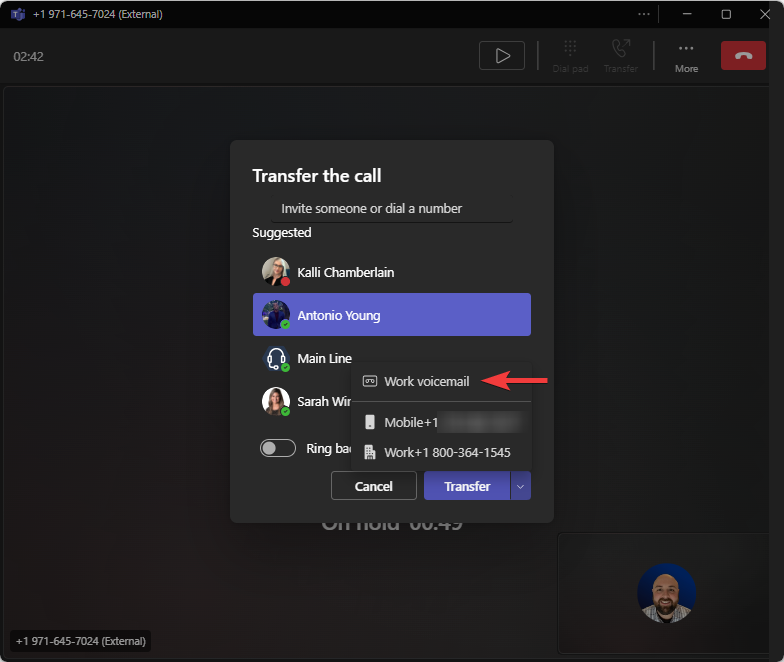
Once you select a person you can click Transfer to send the caller their way. Note you have the option to route the caller back to you if the other party doesn't answer. Alternatively, you can select the arrow menu next to Transfer and specify which number to use or if the call should go directly to their voicemail.
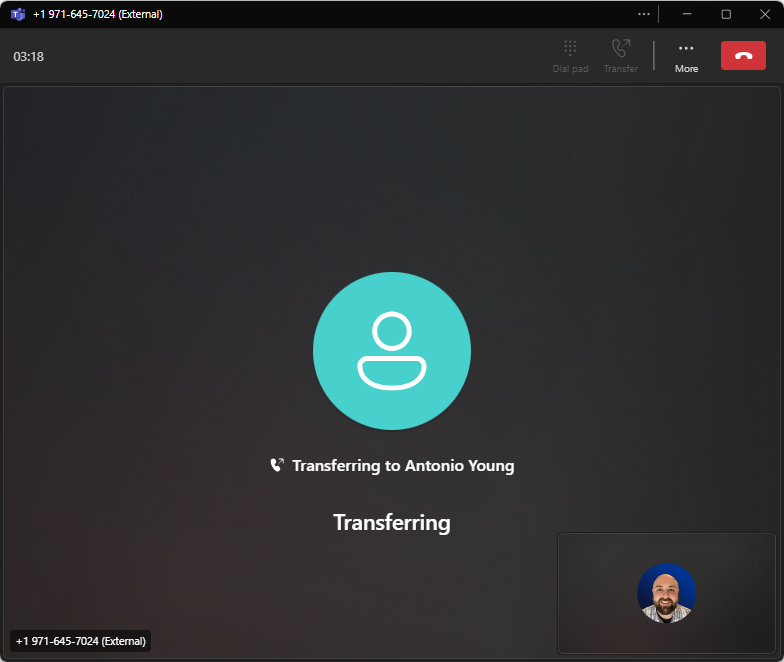
Once the call starts transferring you can immediately hang up or the window should close automatically once the caller connects to another person or their voicemail.
Voicemail
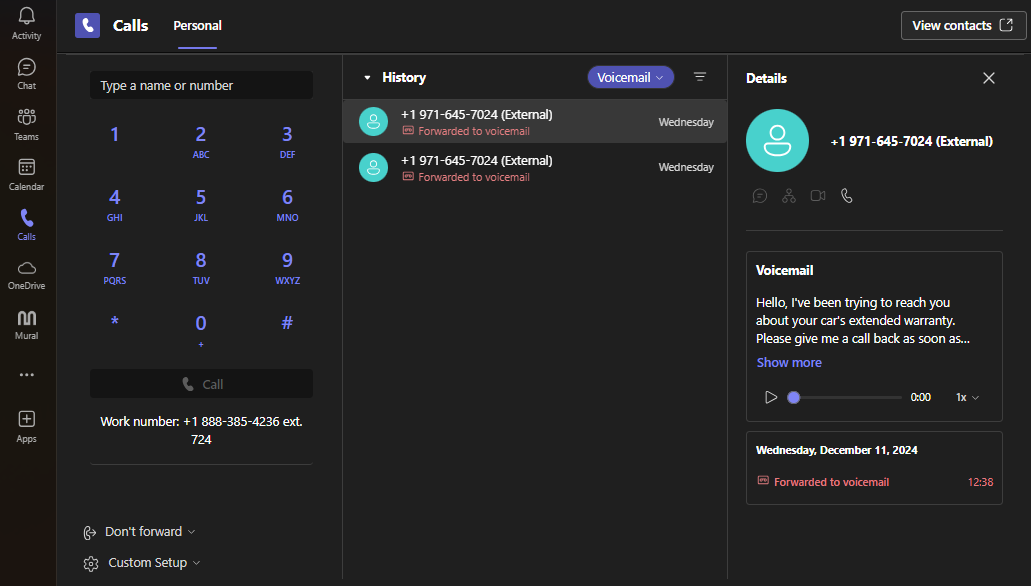
From the Calls tab, find a call forwarded to voicemail in the History section and click to select. The voicemail transcription and recording will show in a panel on the right side.
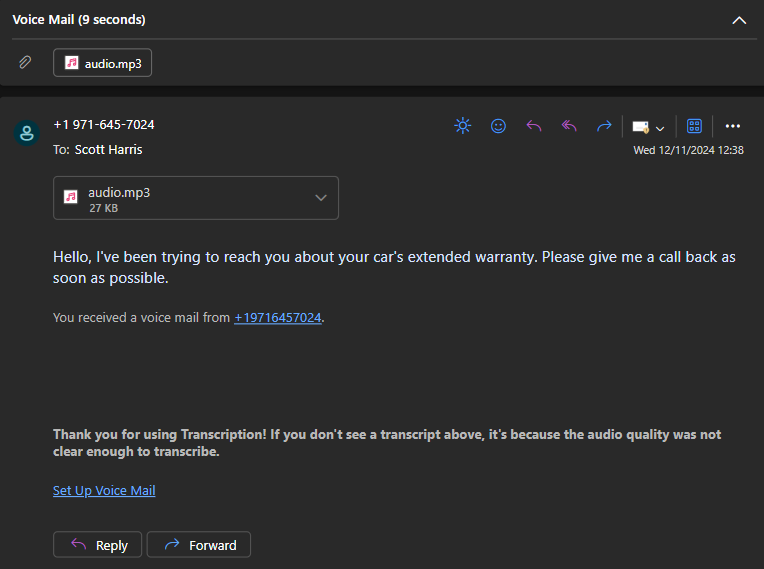
Teams does not support downloading or forwarding voicemail from the Teams app, however, Teams will also send you an email notification with the transcription and recording attached which you can forward as necessary.
Useful Settings
Open Teams settings and navigate to the Calls tab.
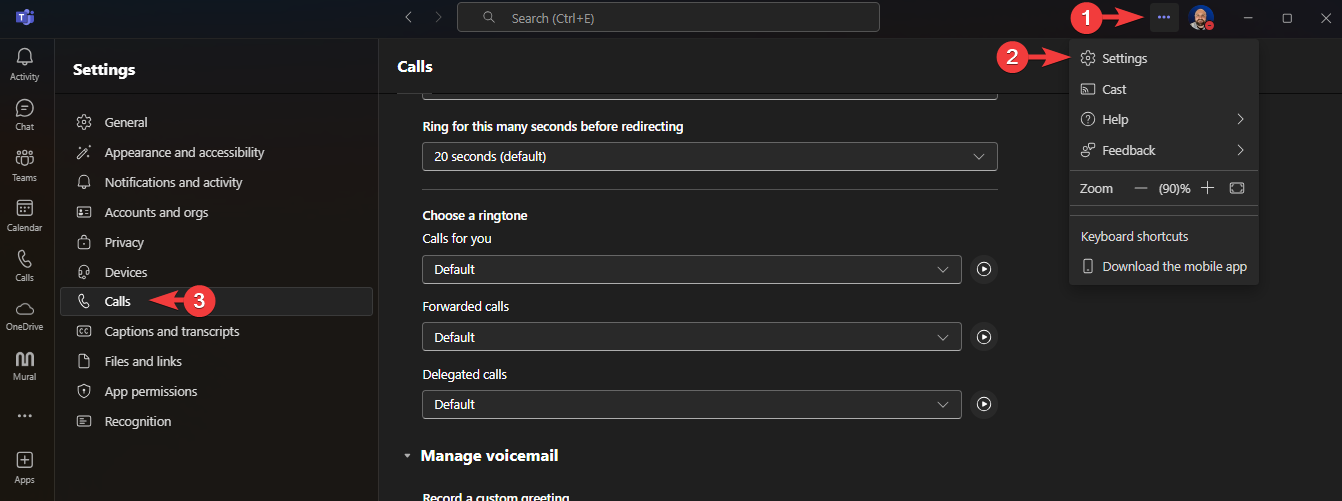
In the Calls tab, there are numerous options to specify how Teams will handle incoming calls. Some examples of things you can do are:
- Forward all phone calls
- Set calls to ring another person at the same time as you
- Set calls to forward to another person if you do not answer
- Set a custom greeting (either a recording, or a text-to-speech message)
- Set a custom greeting for when you are Out of Office (this is used when your calendar/Teams status is set to Out of Office)
- Delegate access to receive calls on your behalf to other people
Teams respects your Work Hours set in Outlook Calendar, meaning if you specify work hours Teams will forward after-hours phone calls to either your voicemail (default) or another person based on your settings.

