

How to login to Adobe

Last updated: Feb 28, 2024
133
views

Your Adobe account is now linked with your Microsoft account, which means you will now login to Adobe using your Microsoft account (you no longer have separate Adobe login information).
The next time you open an Adobe app, or go to the Adobe site, you will be asked to sign in.
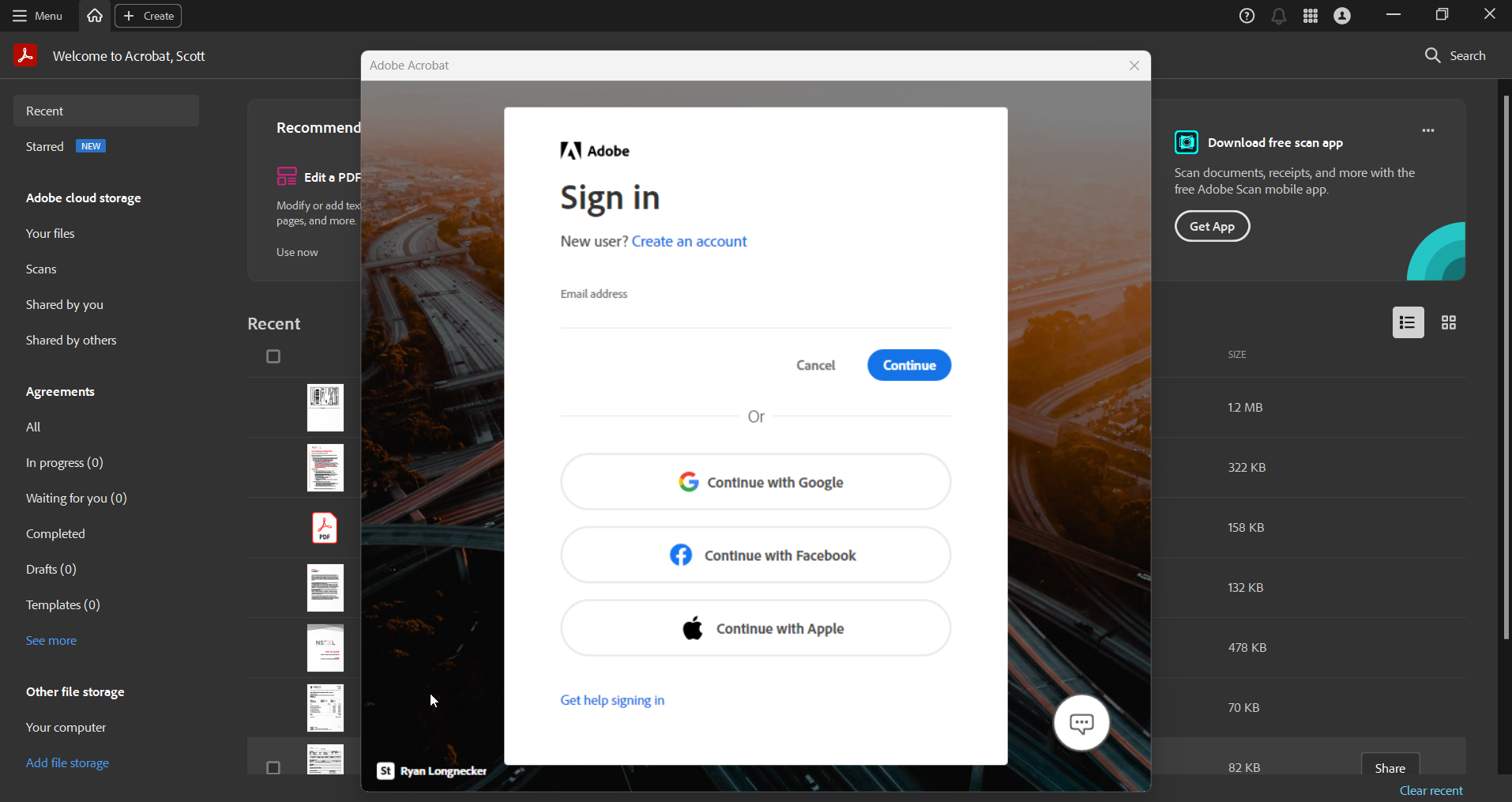
Enter your NSTXL email address and click Continue.
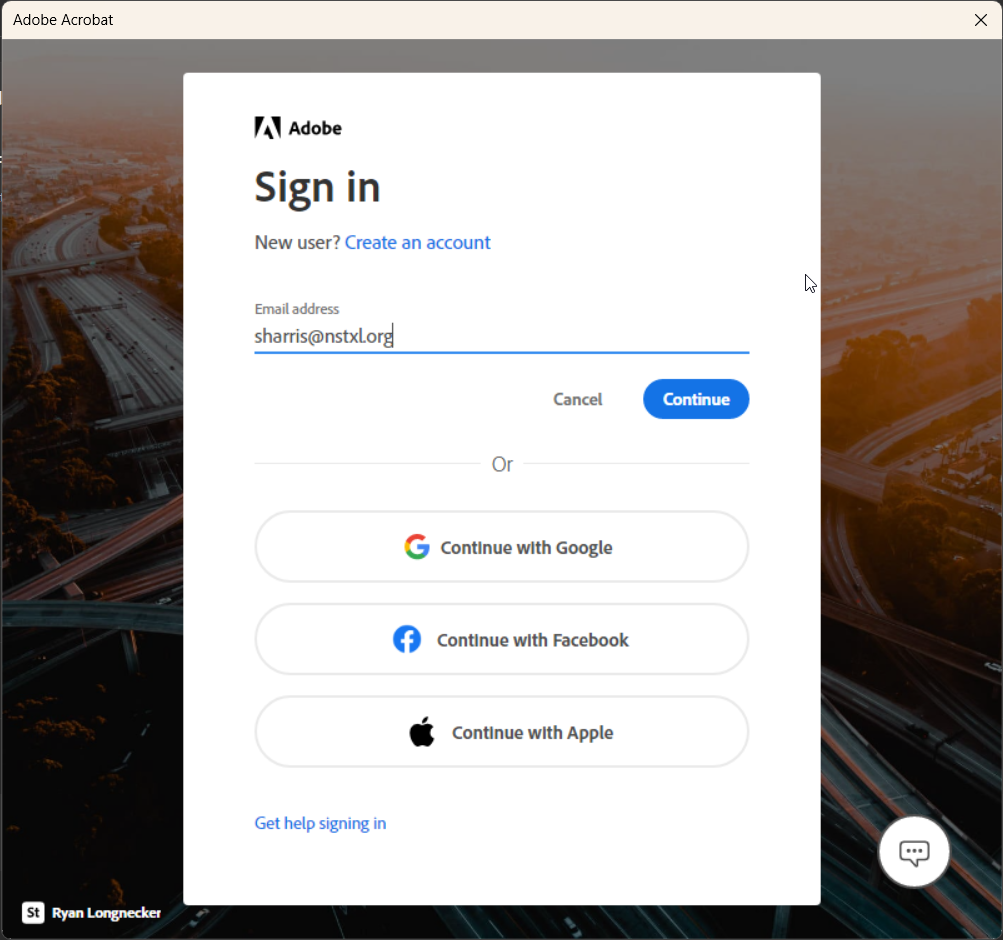
Select the option Company or School Account.
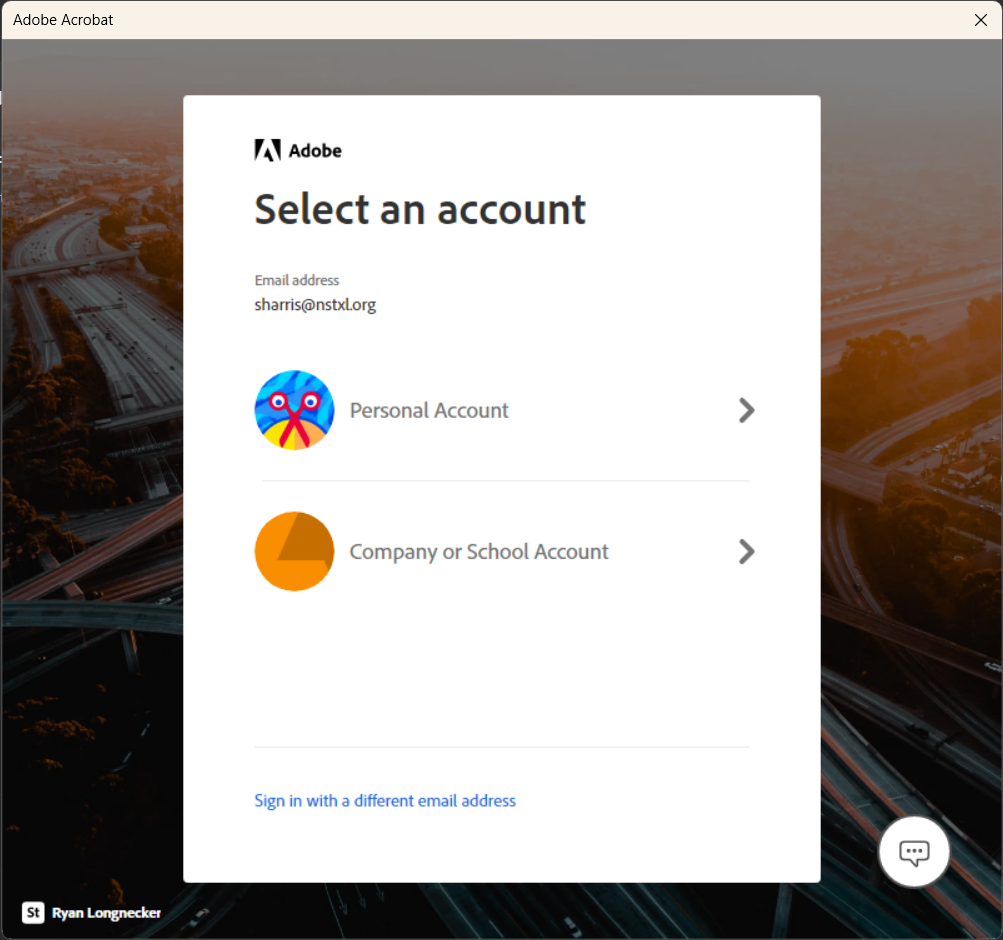
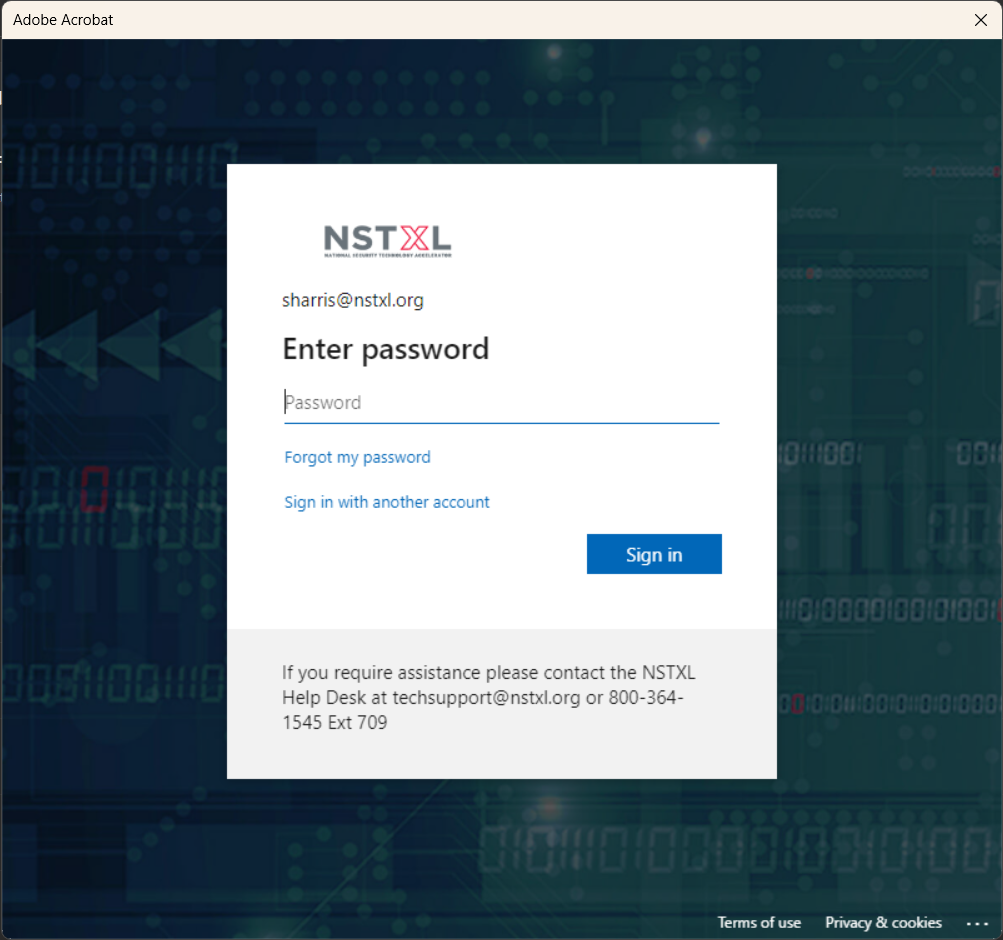
Enter your NSTXL Microsoft/email password.
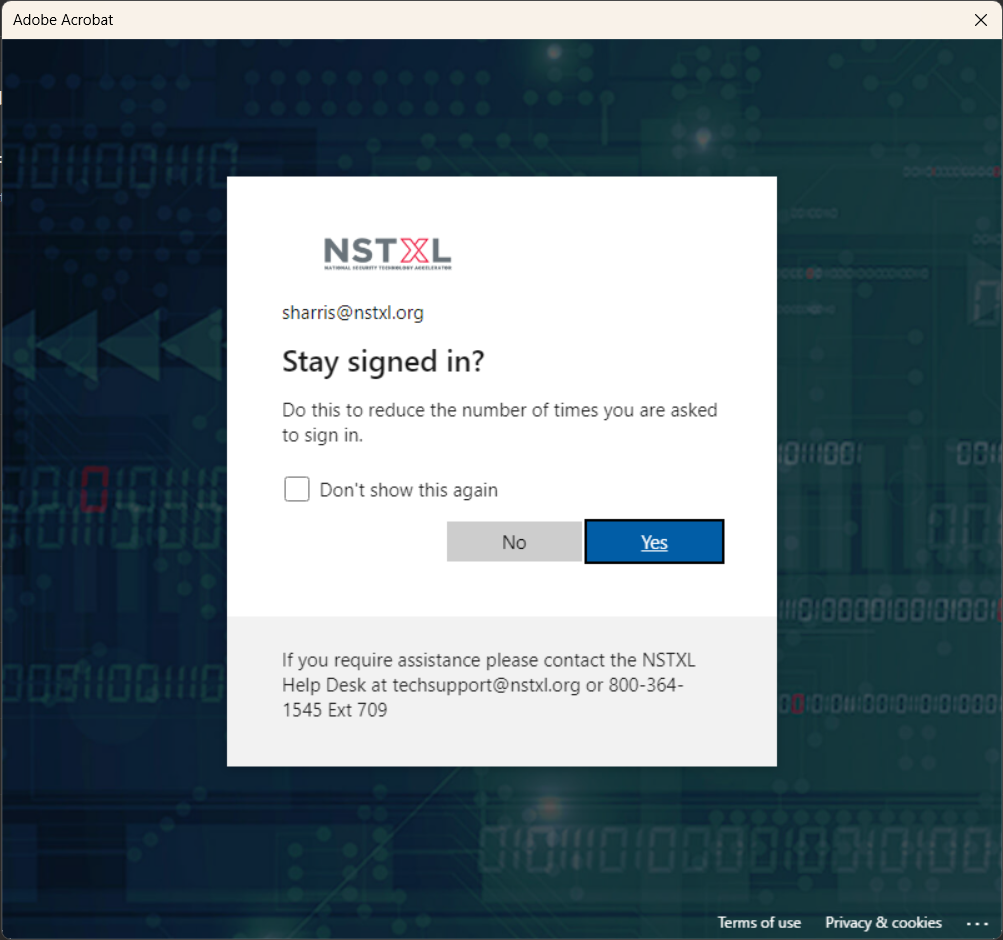
Choose whether you want the app to stay signed in (we recommend checking "Don't show this again" and selecting Yes).
After a few moments, you should return to the Adobe app now signed into your account.

