Clear Browser Cache on Exit

Last updated: Sep 26, 2024
48
views

Hello! This guide will walk you through setting your browser to clear your cached cookies and site data when closed. This can help keep your browsing experience up to date and resolve some login or webpage display issues.

Microsoft Edge
- In the Edge browser, click the three dots menu in the top right and open Settings.
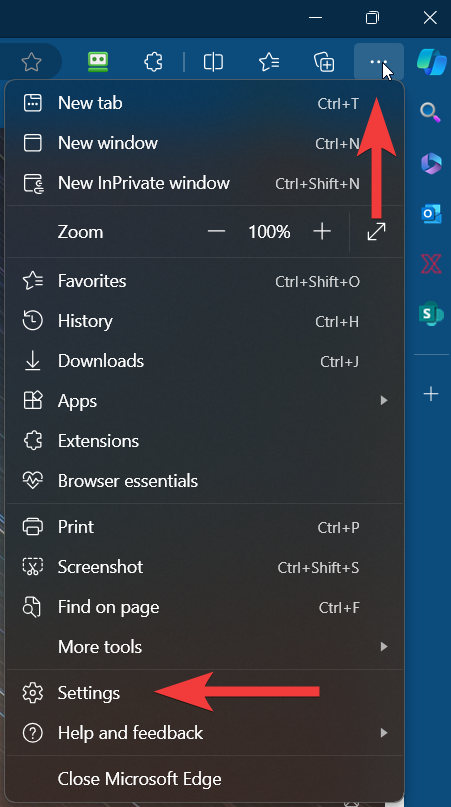
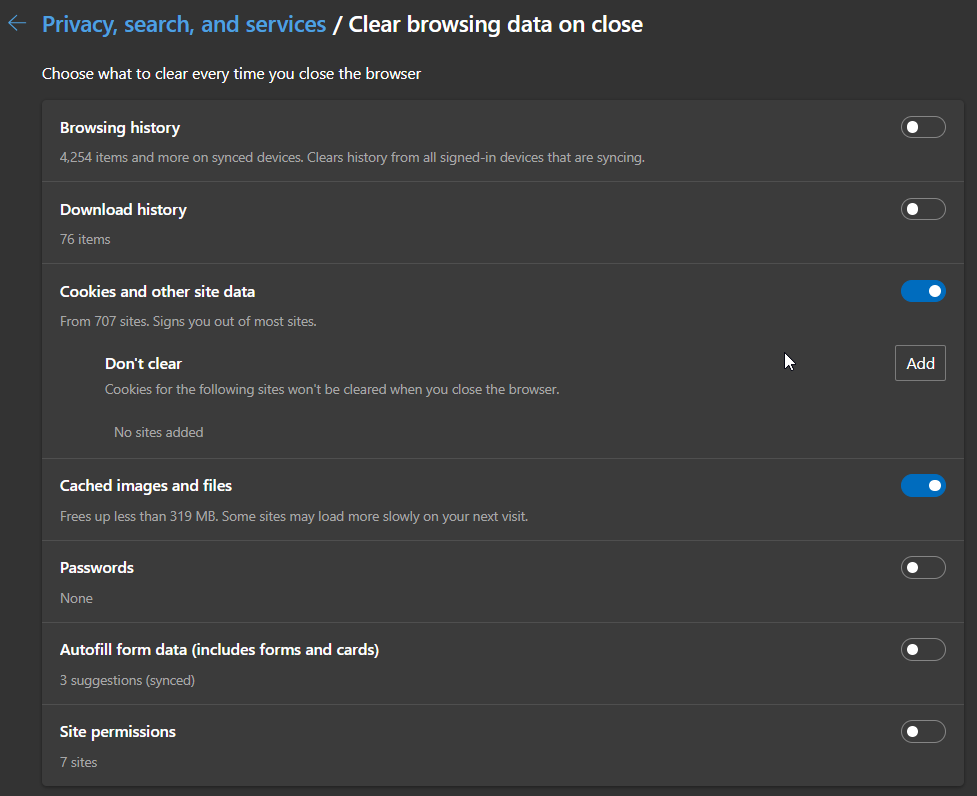
- In the left menu, select Privacy, search, and services. Then in the right area, scroll down to the Clear browsing data section and click on Choose what to clear every time you close the browser to expand the menu.

- You can set the options you feel most comfortable with, but Cookies and other site data and Cached images and files will have the most beneficial effect towards resolving issues.

Google Chrome
- In the Chrome browser, click the three dots menu in the upper right and select Settings.
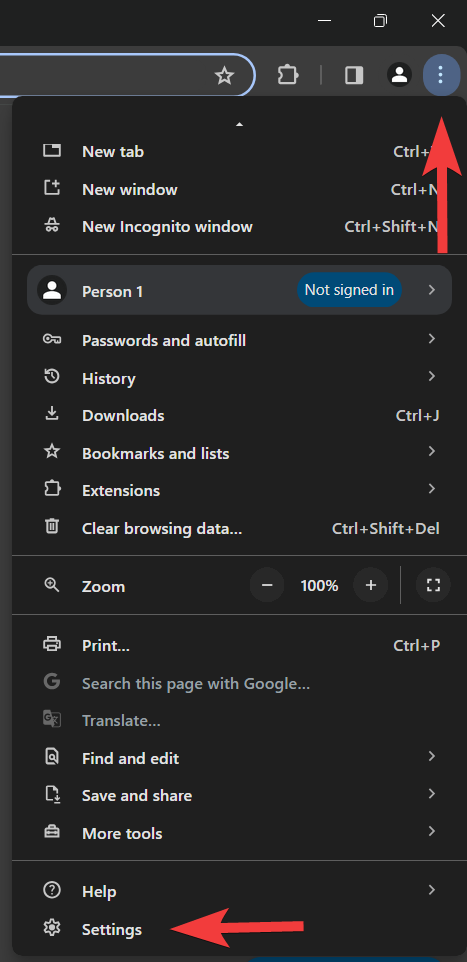
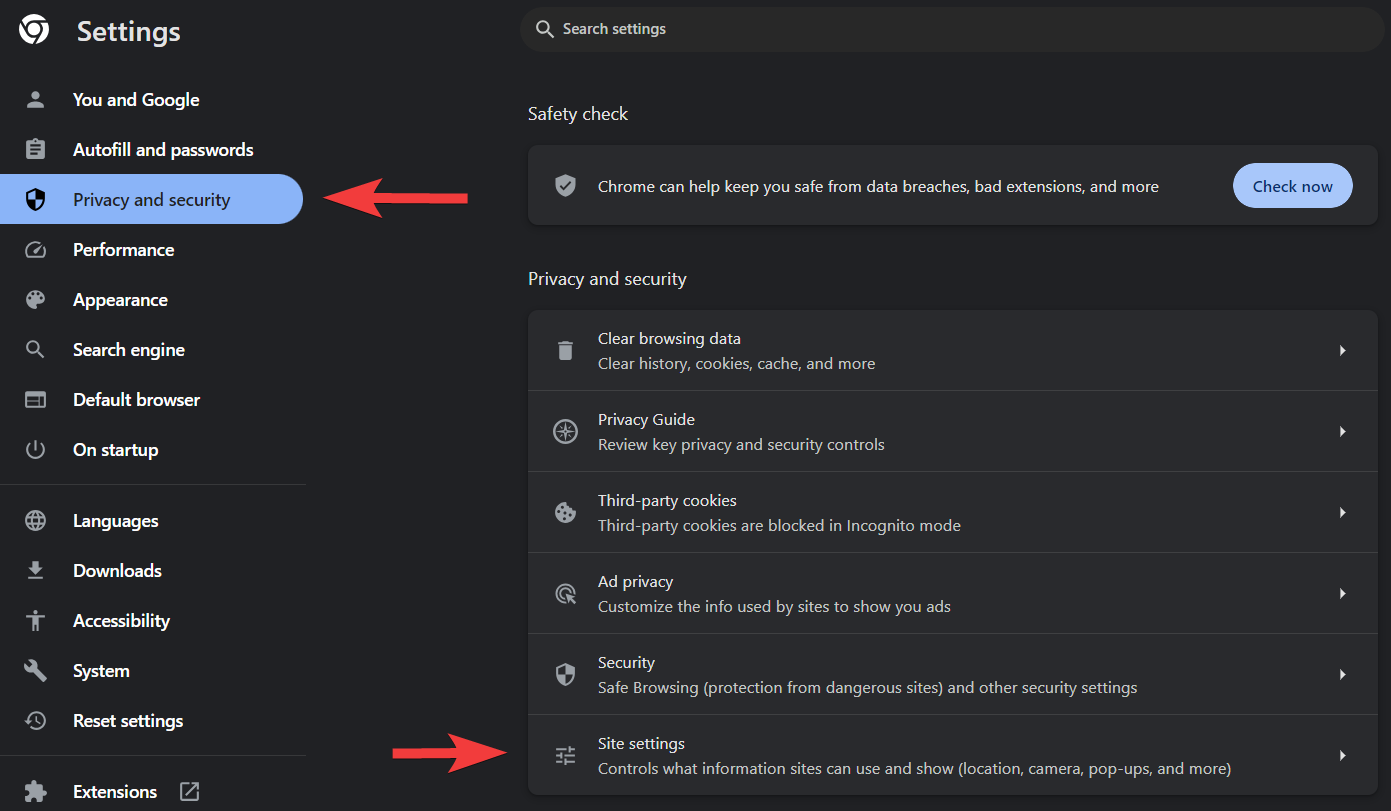
- On the left, open the Privacy and security tab. Then on the right, select Site settings.
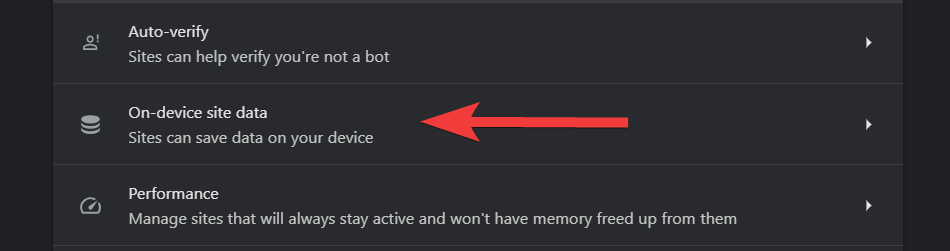
- Scroll down and open On-device site data.
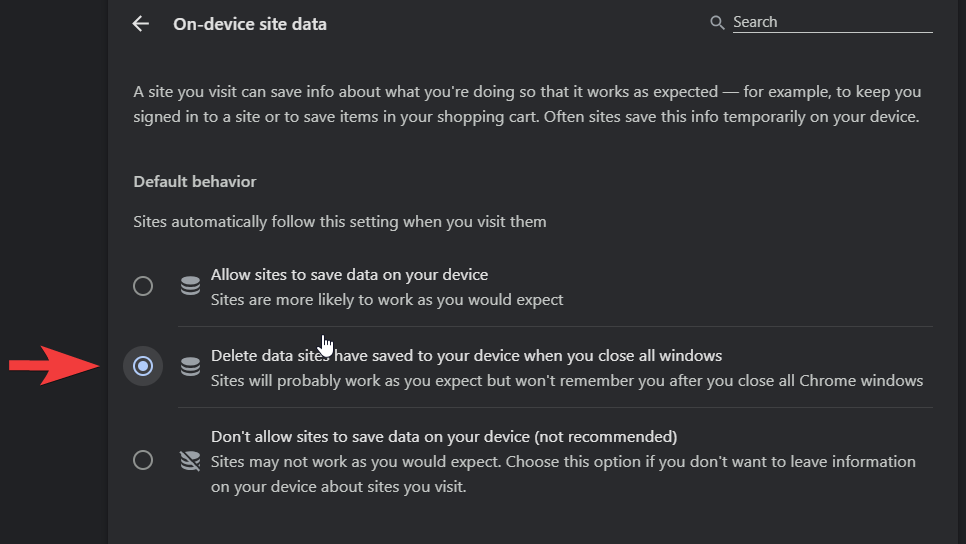
- In the Default behavior section, select Delete data sites have saved to your device when you close all windows.

Mozilla Firefox
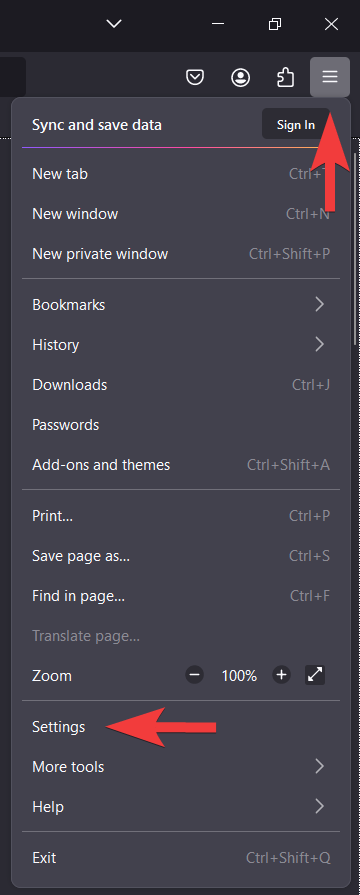
- In the Firefox browser, click the hamburger menu in the upper right and select Settings.
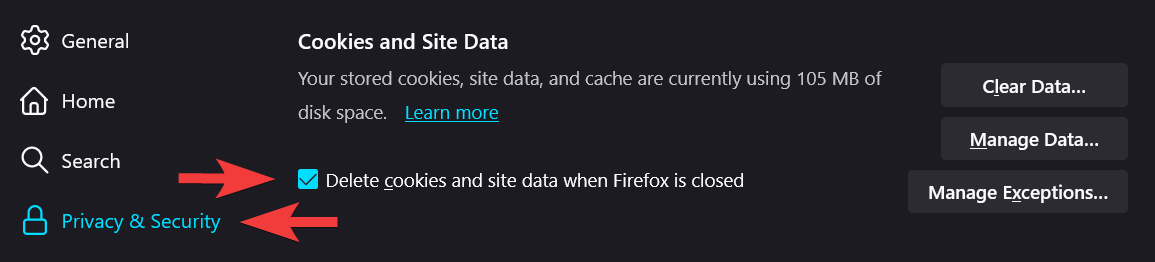
- On the left, open the Privacy & Security tab. Then on the right, scroll down to the Cookies and Site Data section and check Delete cookies and site data when Firefox is closed.