How to: Sign in to the Zscaler Client Connector

Last updated: Aug 12, 2026
148
views

Zscaler serves as internet/network security for company laptops. You connect to the Zscaler service through the Zscaler Client Connector app installed on your laptop.
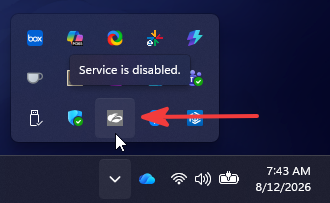
When the Zscaler Client Connector is not logged in, it will show as a grey icon in the Windows system tray:
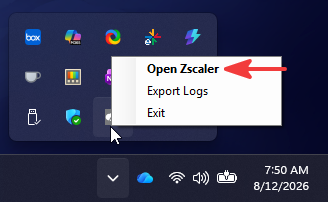
Right-click on the icon and select Open Zscaler:
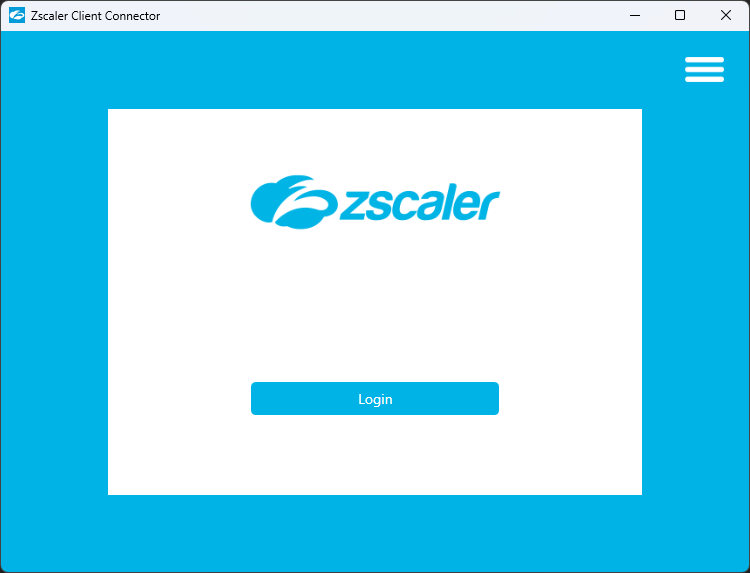
In the Client Connector, select Login:
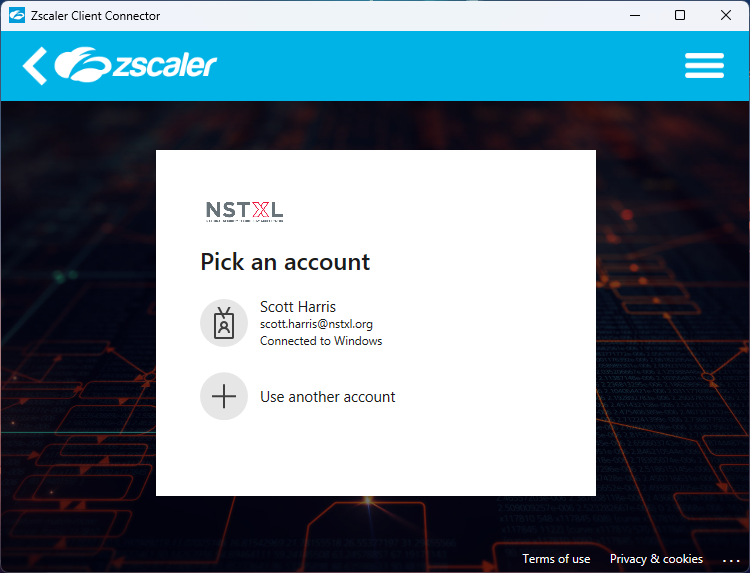
After syncing with the services online, the app will ask you to select your Microsoft user account. Click on your user account to select it:
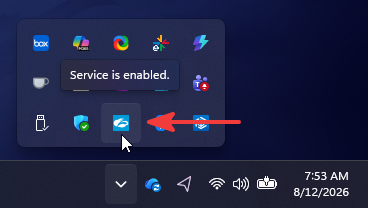
After logging in, the app will minimize back to the system tray and the icon should now be blue: