Enroll Mobile Device

Last updated: Mar 13, 2024
296
views

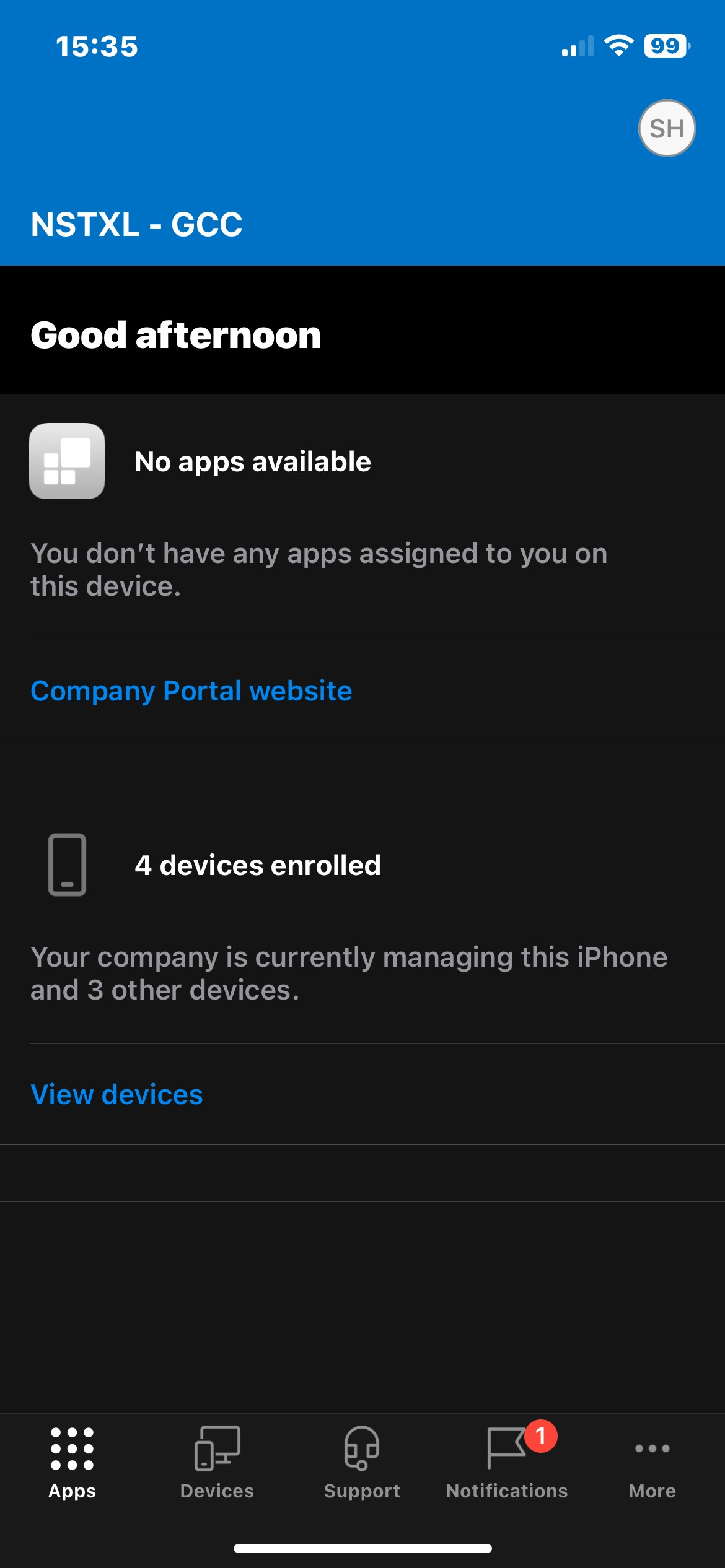
Hello! This article will walk you through enrolling your mobile device in NSTXL's device management, allowing you to access company resources such as email and Teams chat.
Android

- Open the Play Store and search for "company portal", then install the Intune Company Portal app from Microsoft.
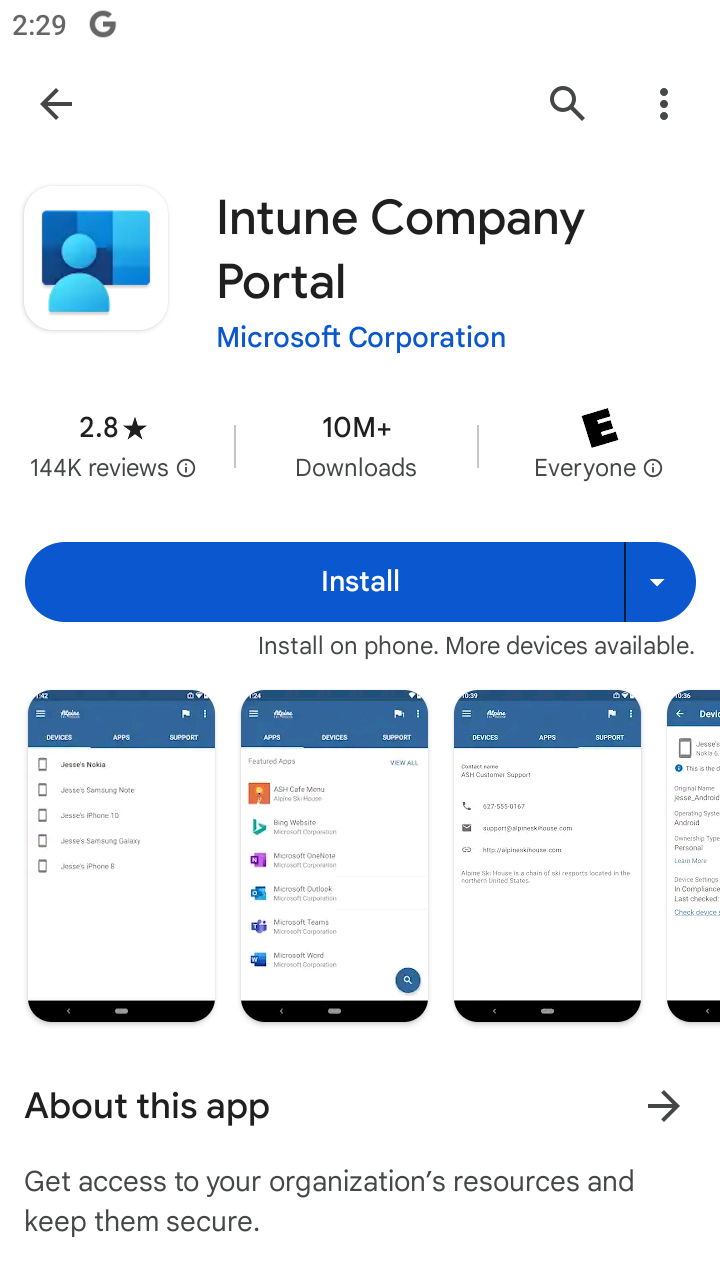
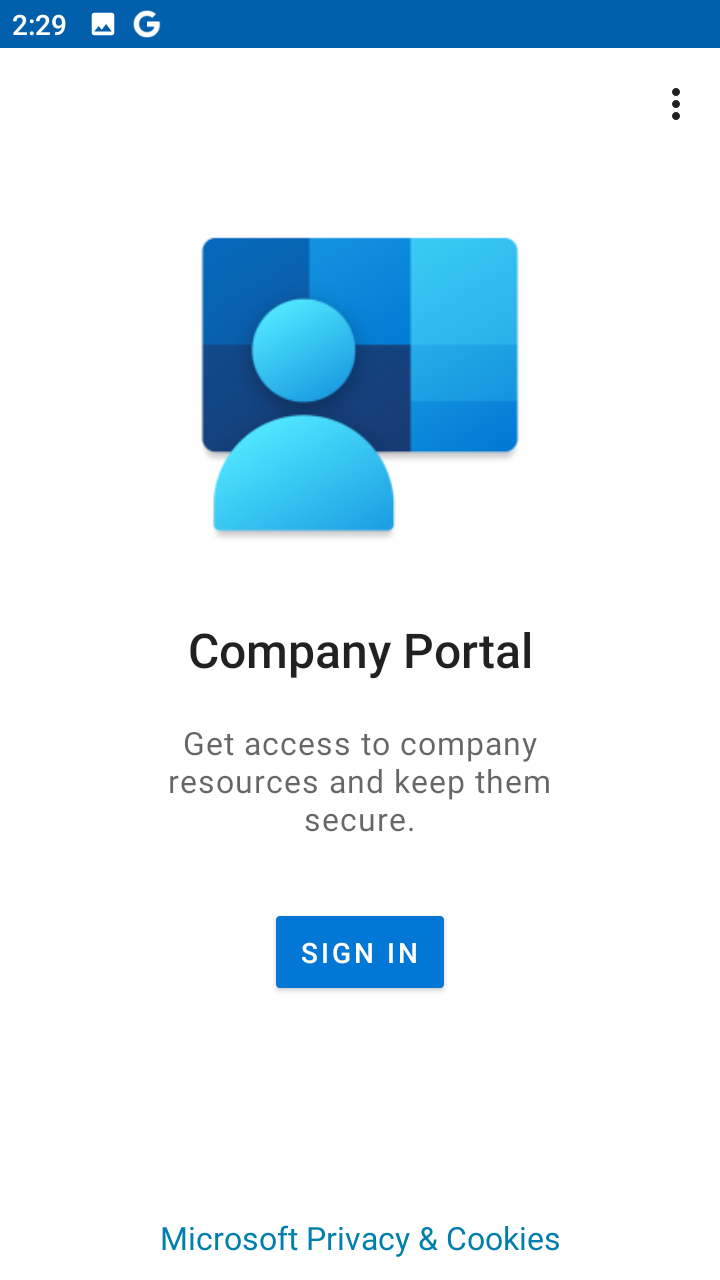
- Once downloaded, open the app and select SIGN IN.
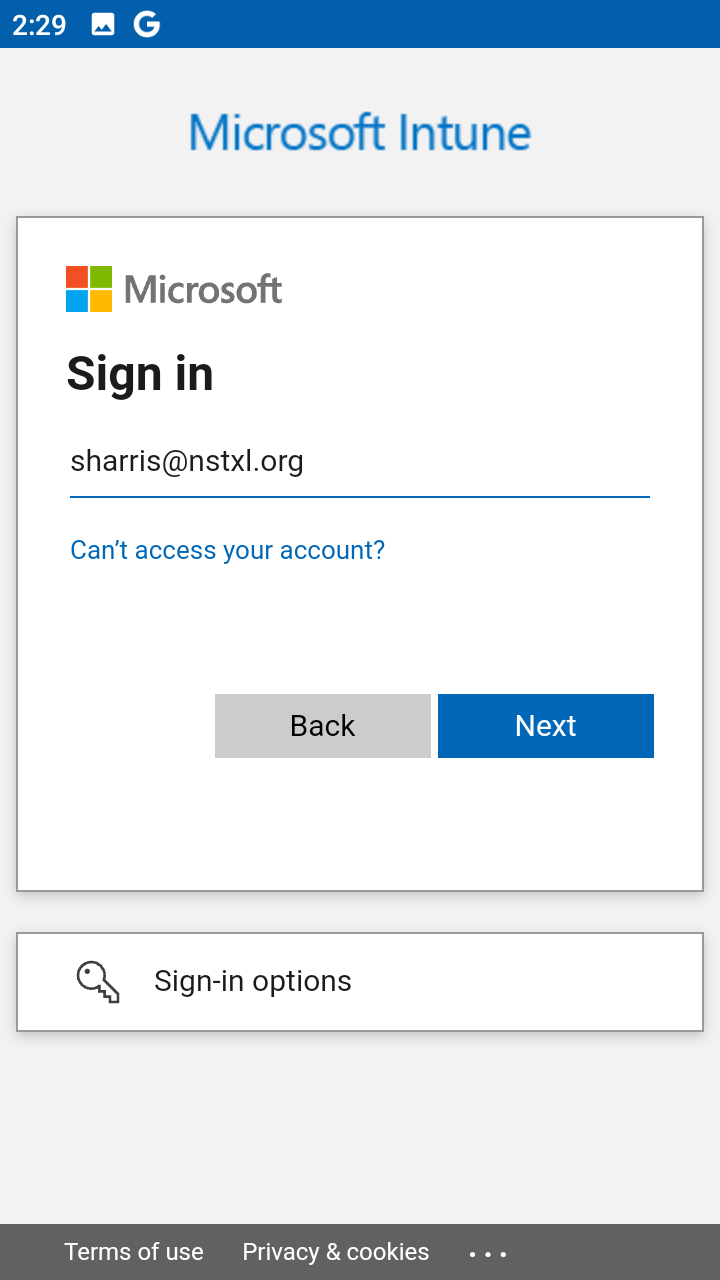
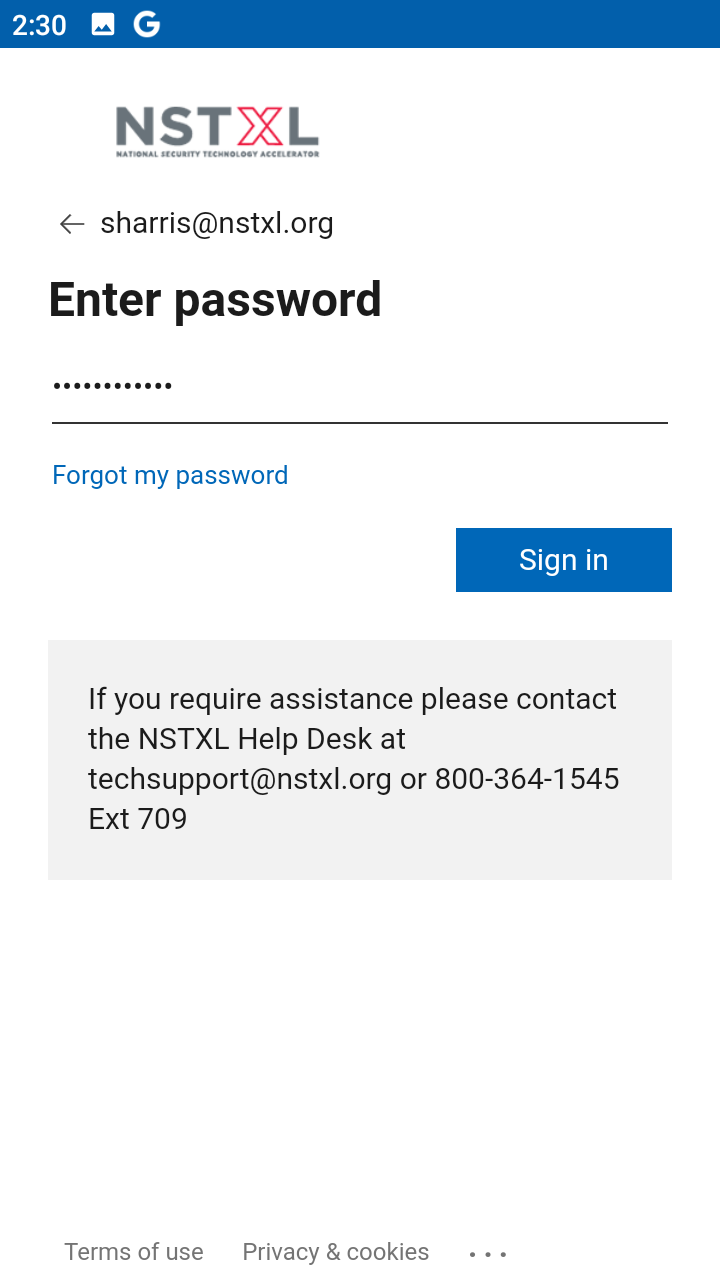
- Login with your NSTXL Microsoft credentials and complete multi-factor authentication when prompted.
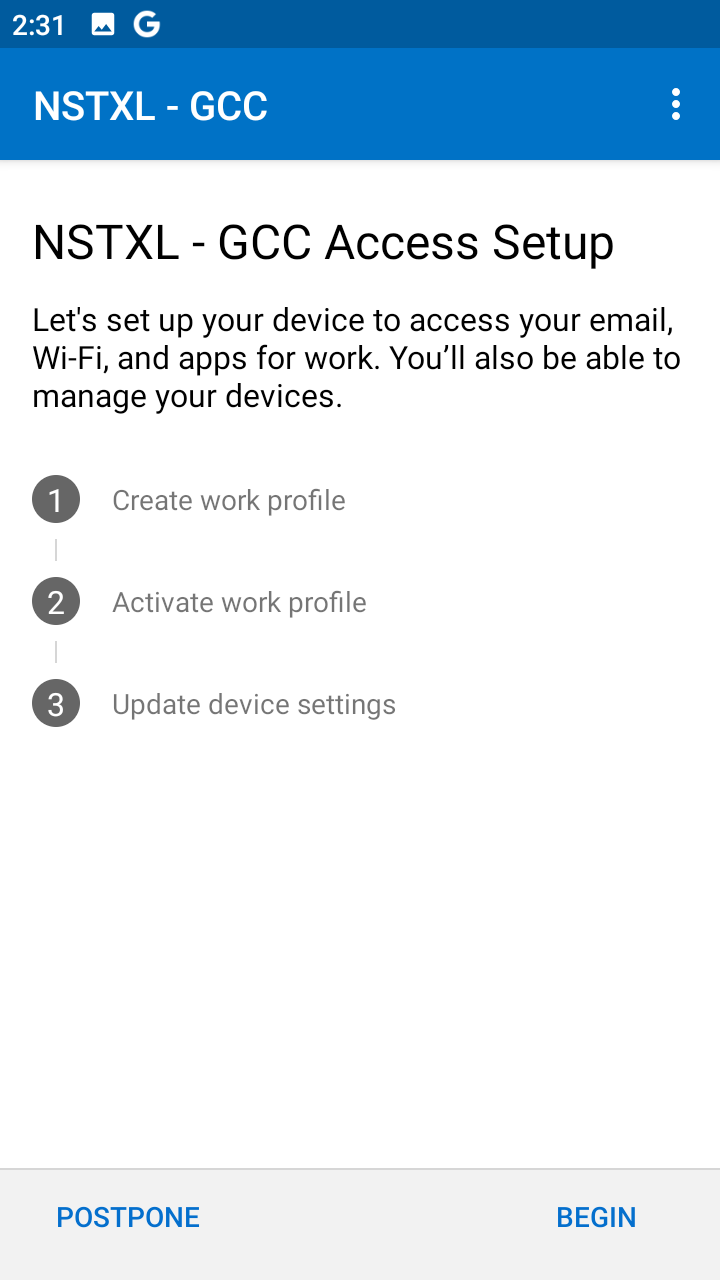
- Next, you will need to set up a work profile on your device, select BEGIN.
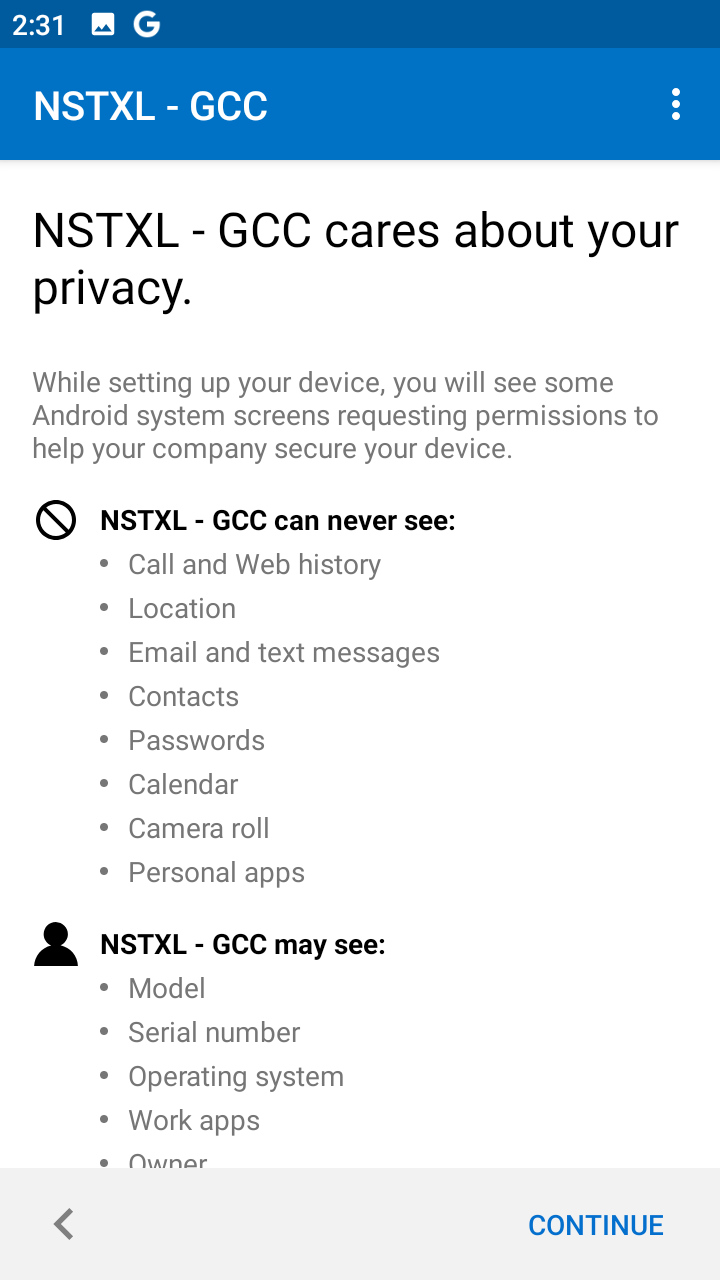
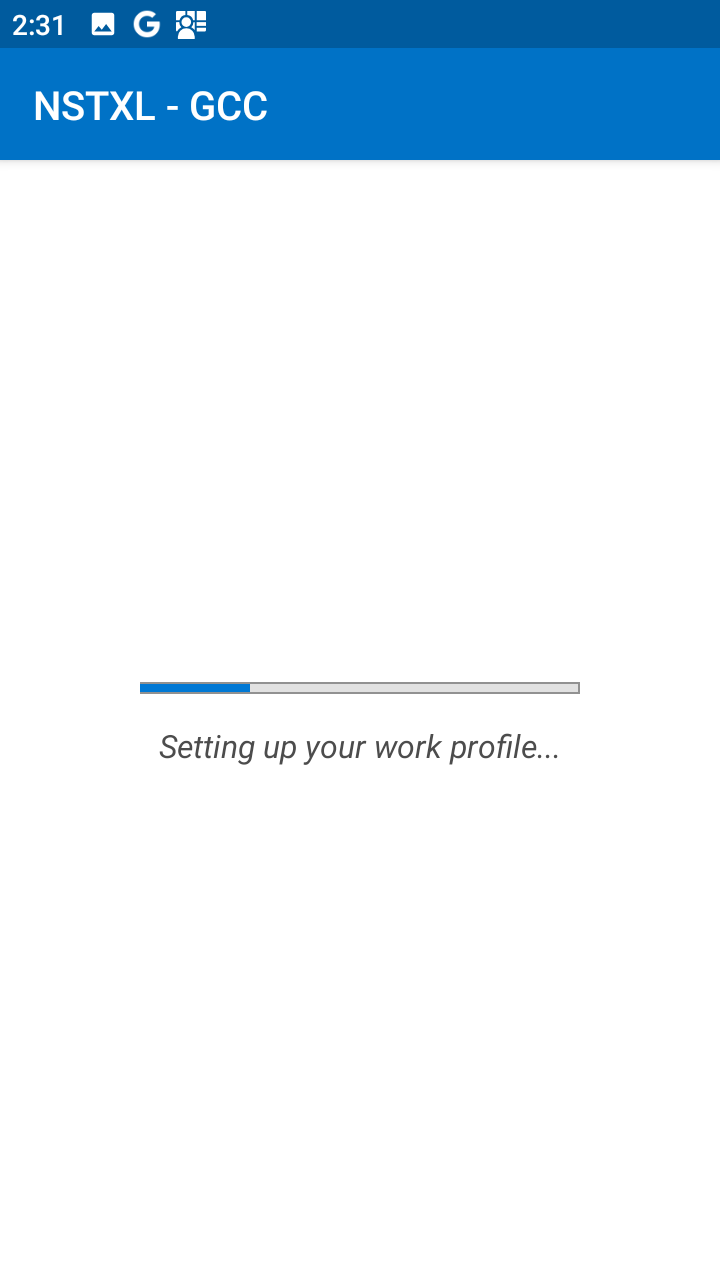
- Read the privacy statement clearly, note that NSTXL can only view general device information and data that flows through the work apps. Select CONTINUE and wait while the profile is set up. If any additional prompts ask for permissions, select to allow permission.
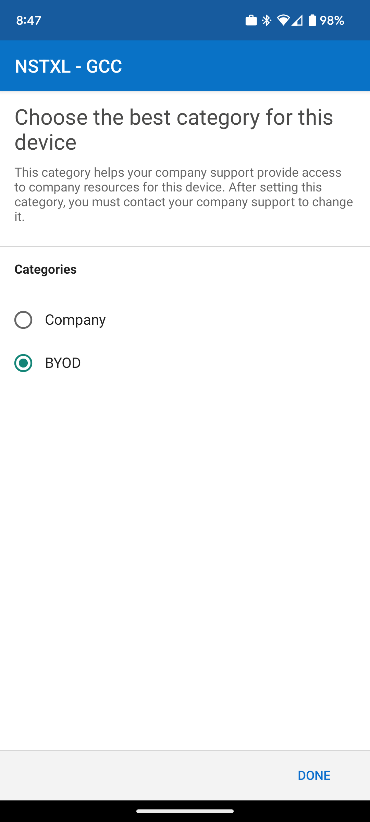
- If prompted to select a category for your device, select BYOD. This prompt does not appear in all cases.
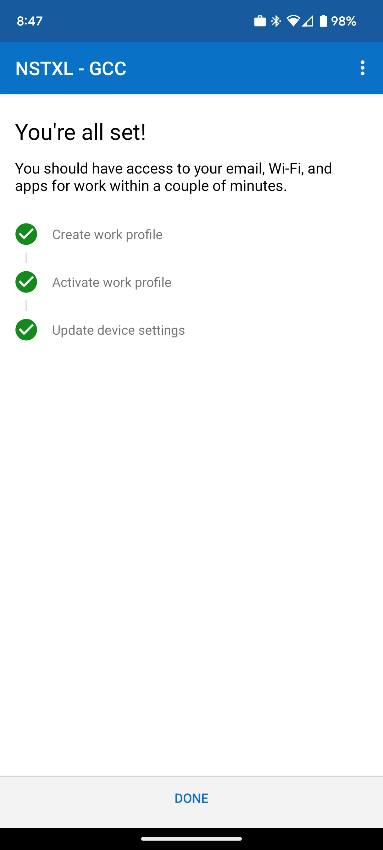
- Once you see You're all set! page, you can safely close or switch away from the Intune Company Portal app.
Apple

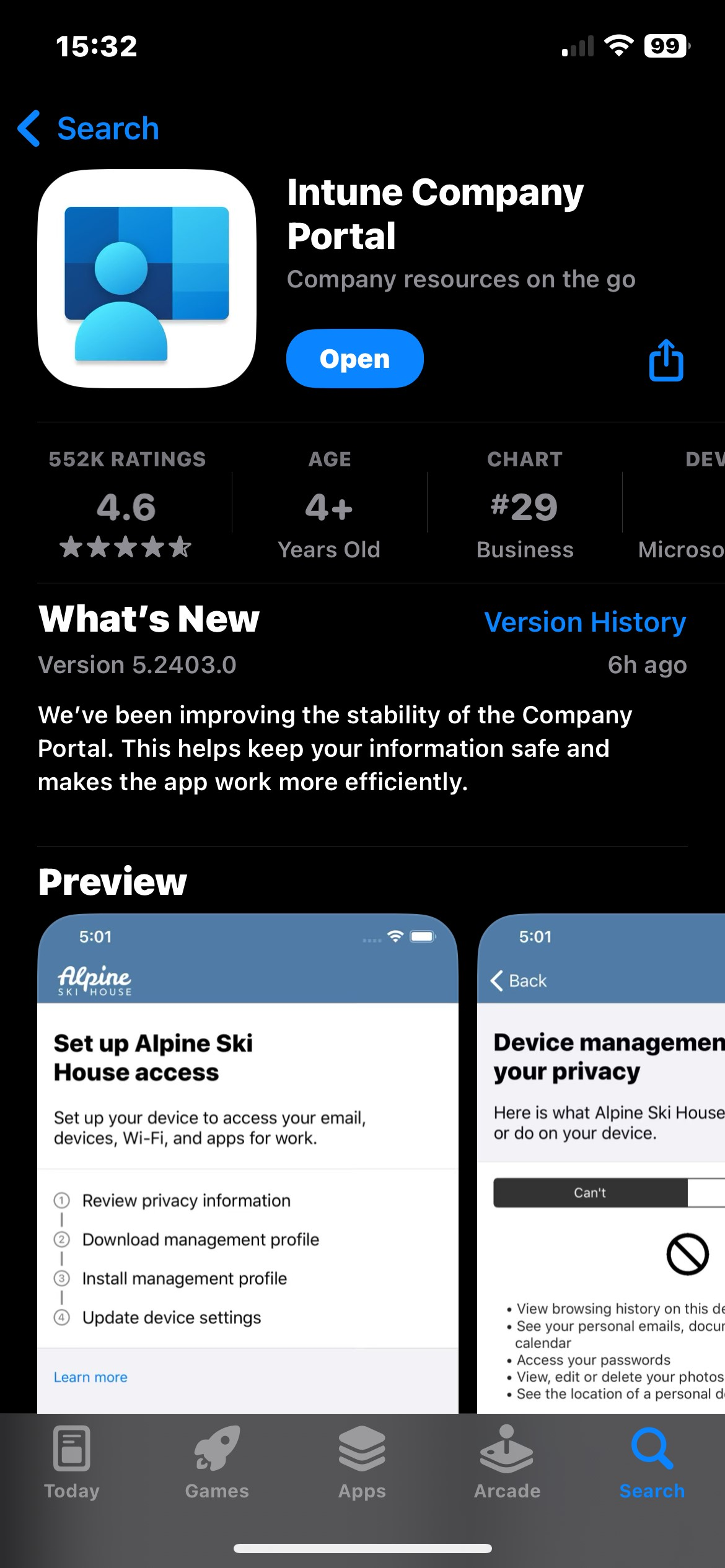
- Open the App Store and search for "company portal", then install the Intune Company Portal app from Microsoft.
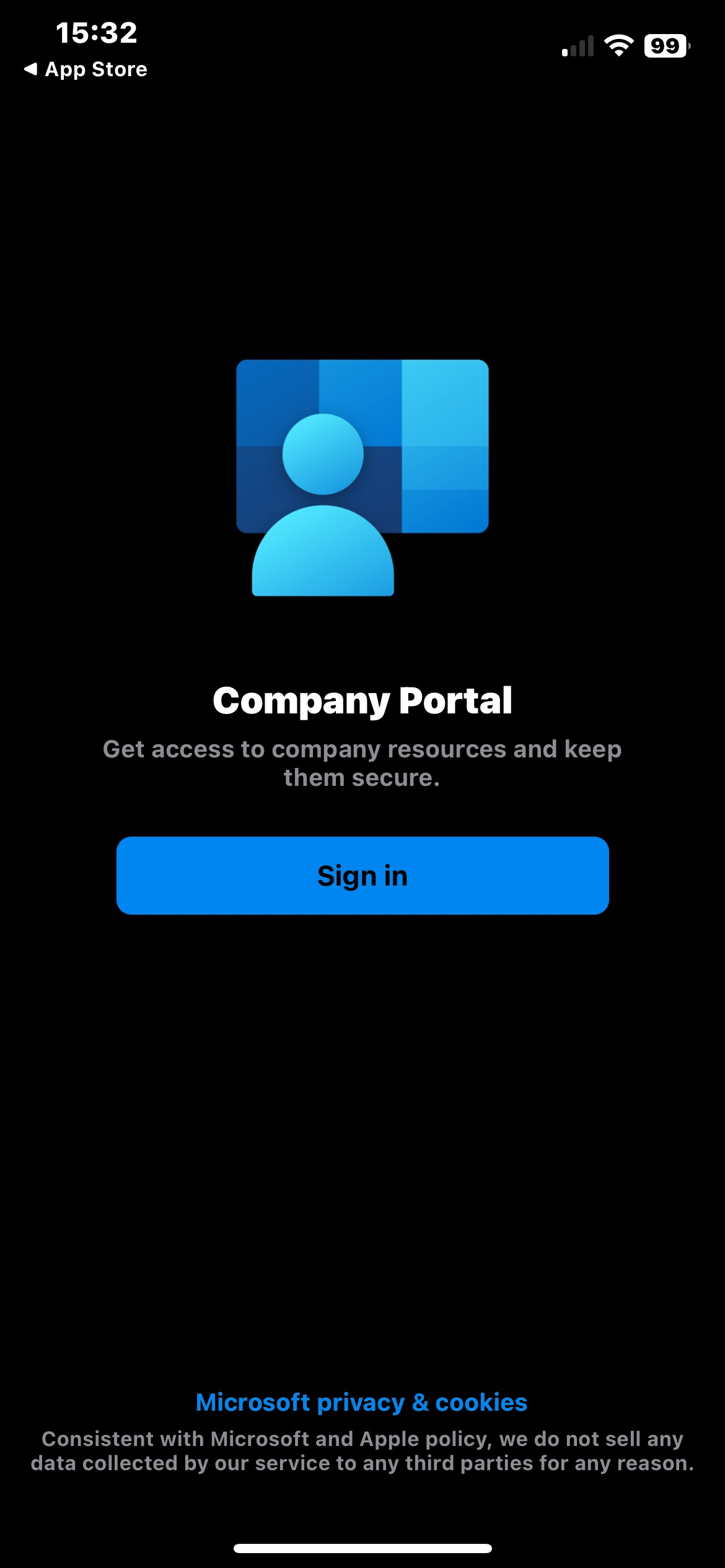
- Once downloaded, open the app and select SIign in.
- Log in with your NSTXL Microsoft credentials. If you already have the Microsoft Authenticator set up, you will be directed to that app to select an account.
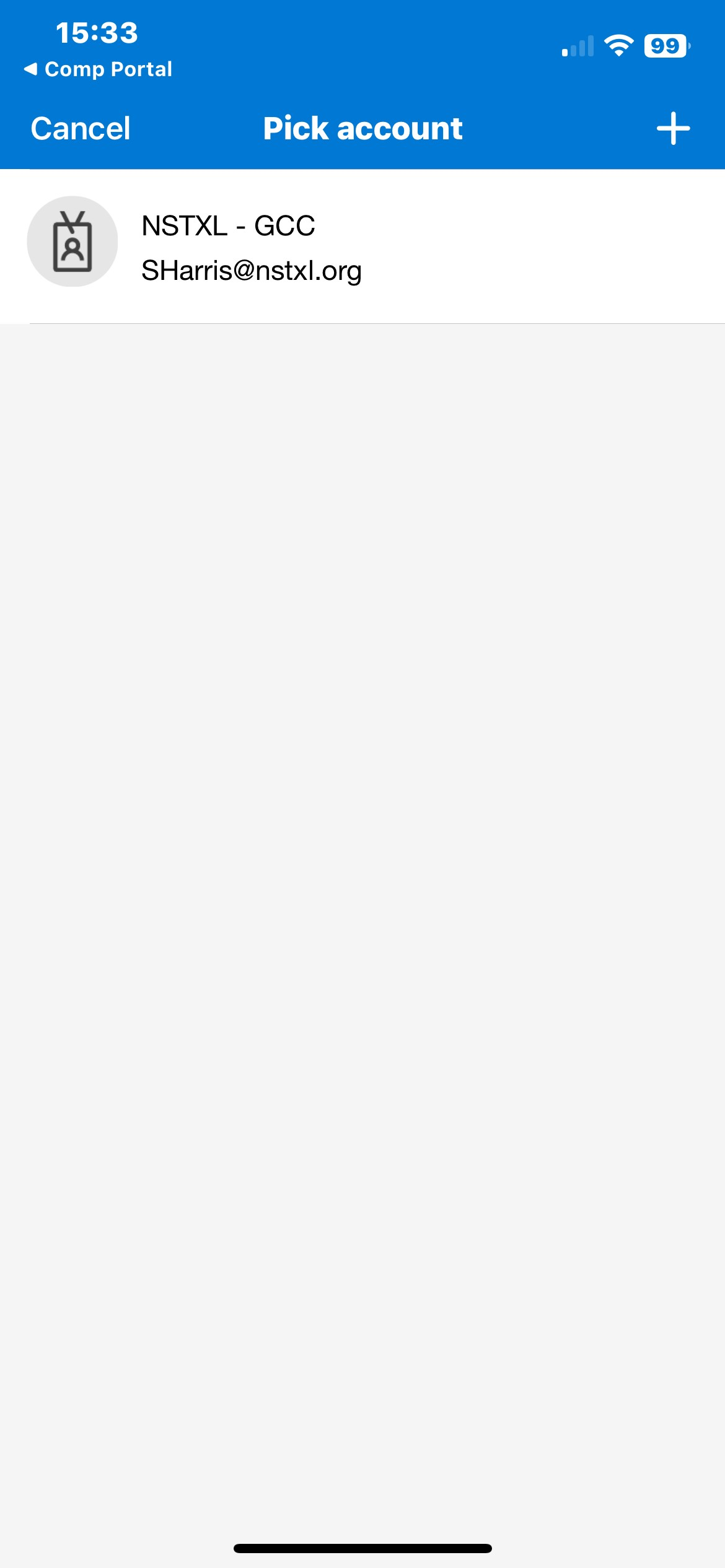
- The app will walk you through the processes step by step, start by selecting Begin and continue through the prompts.
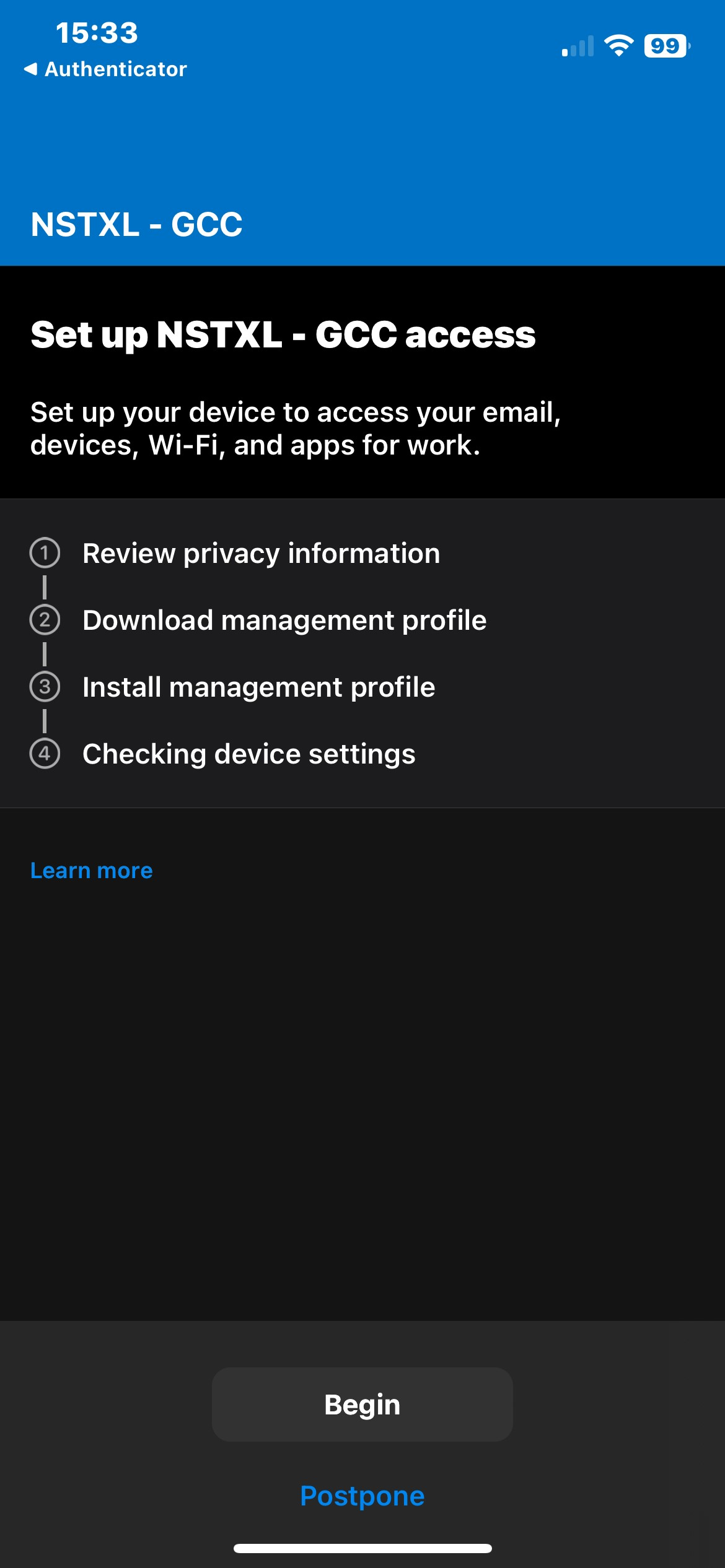
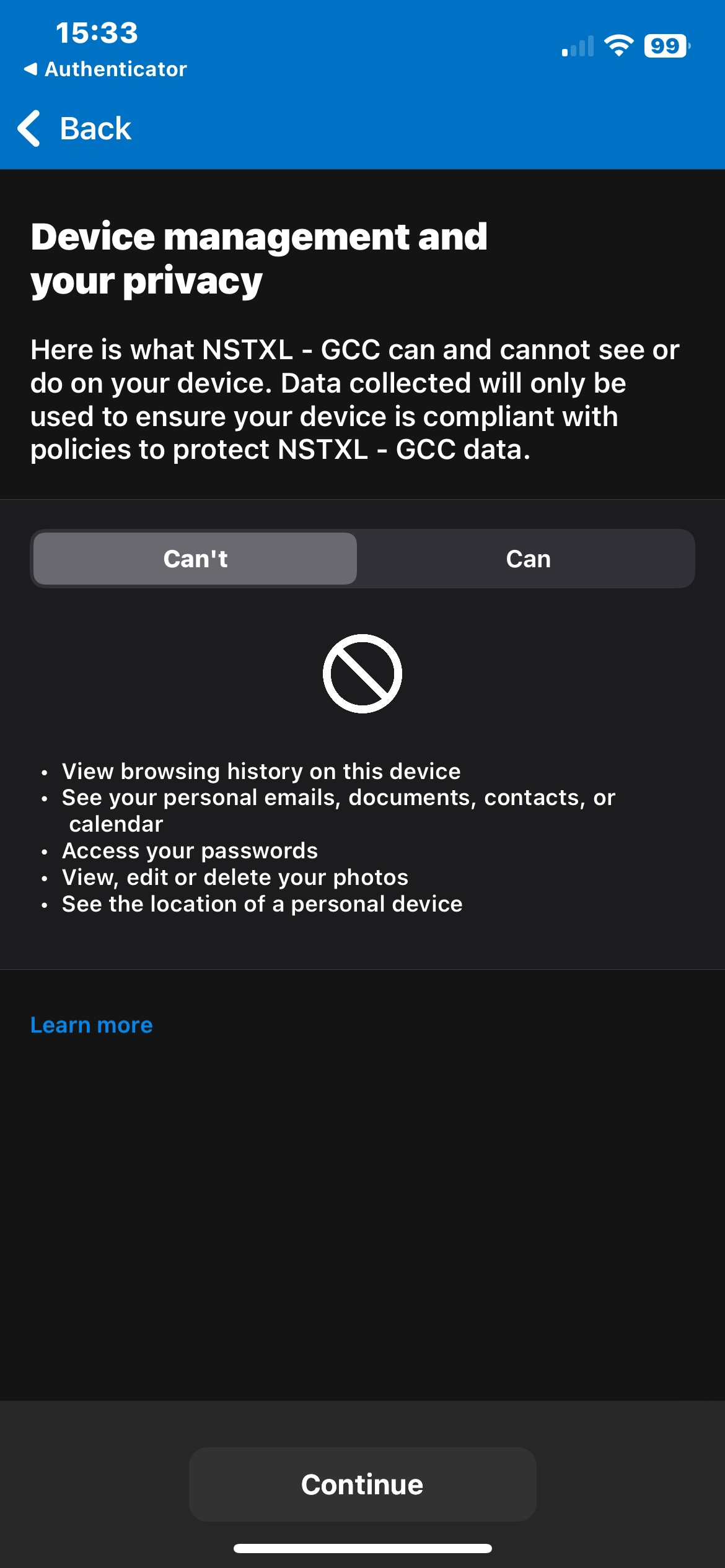
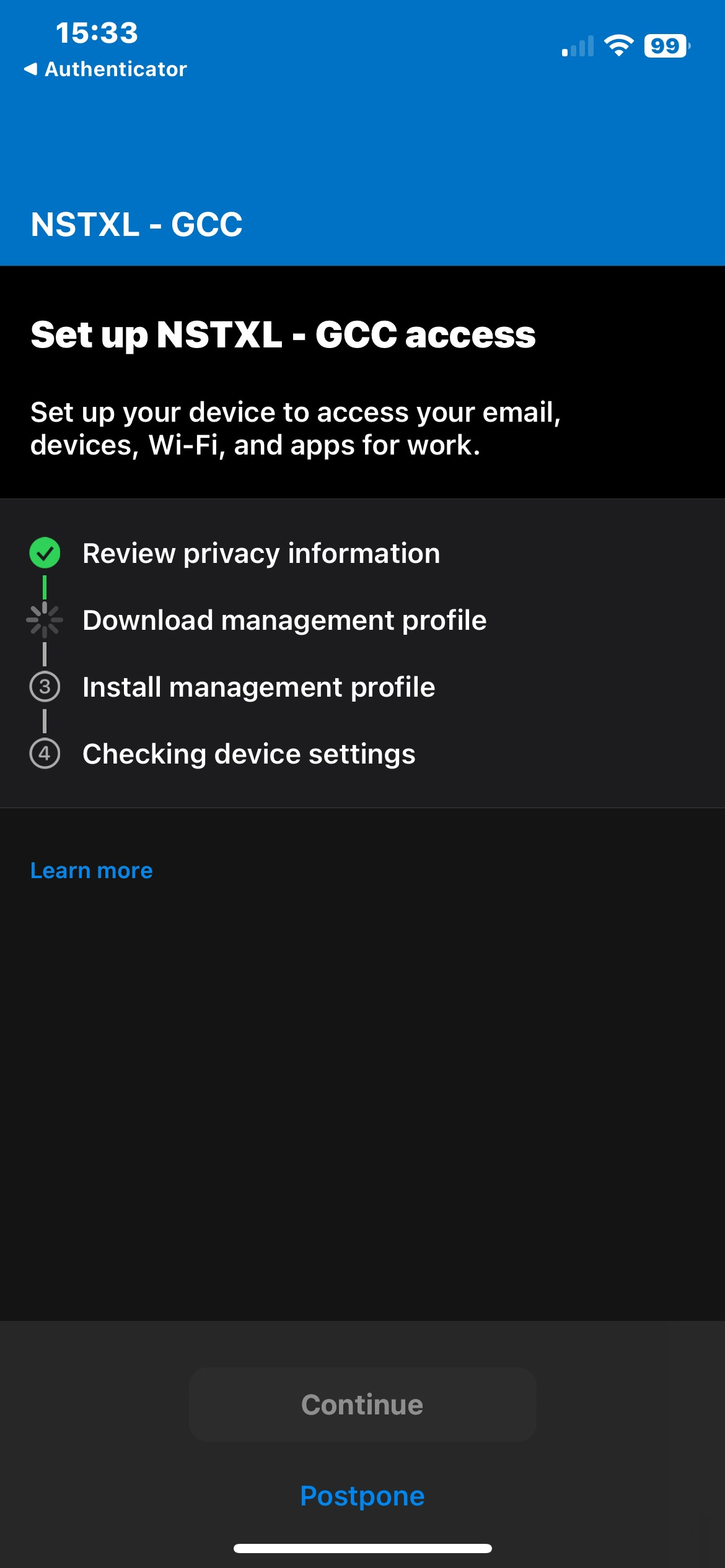
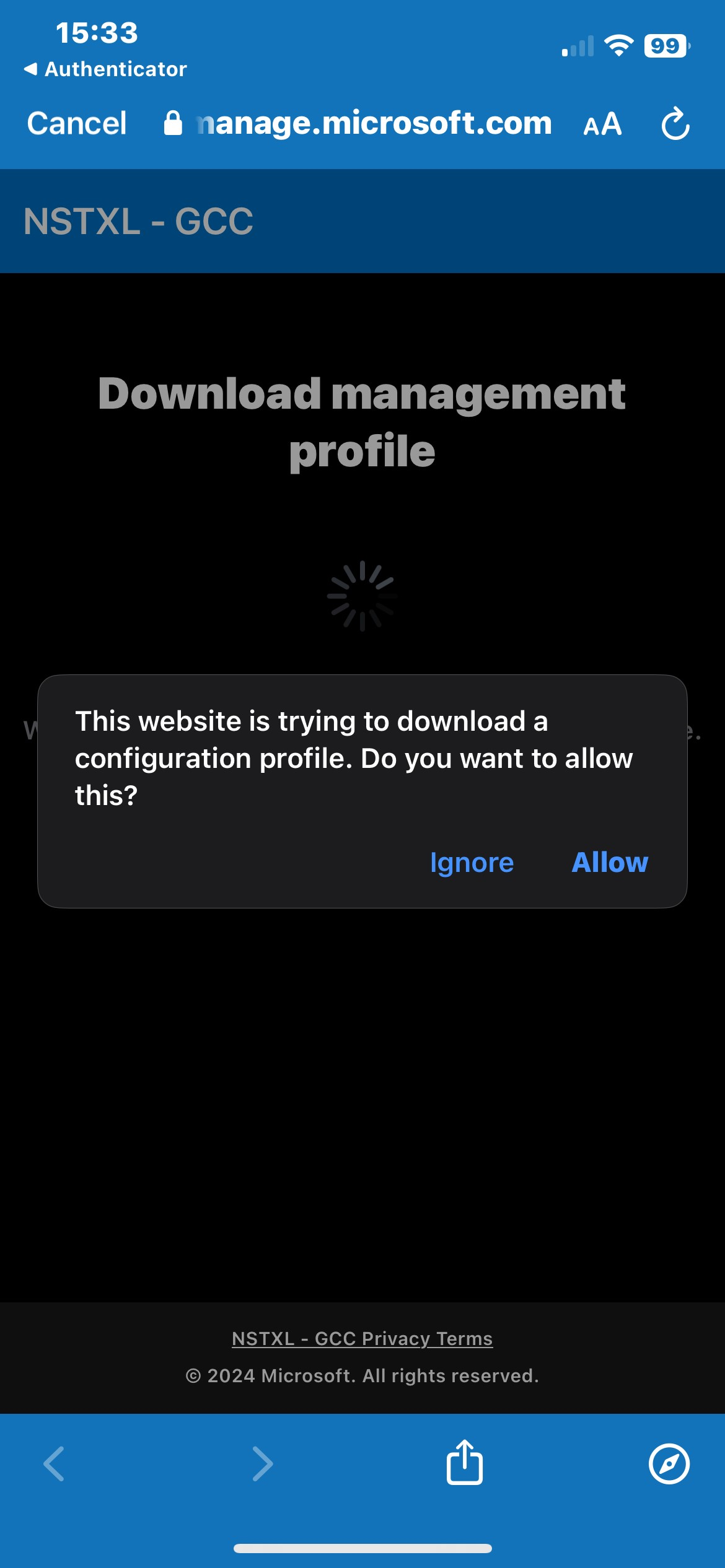
- When prompted that the the app/website is trying to download a configuration file, select Allow.
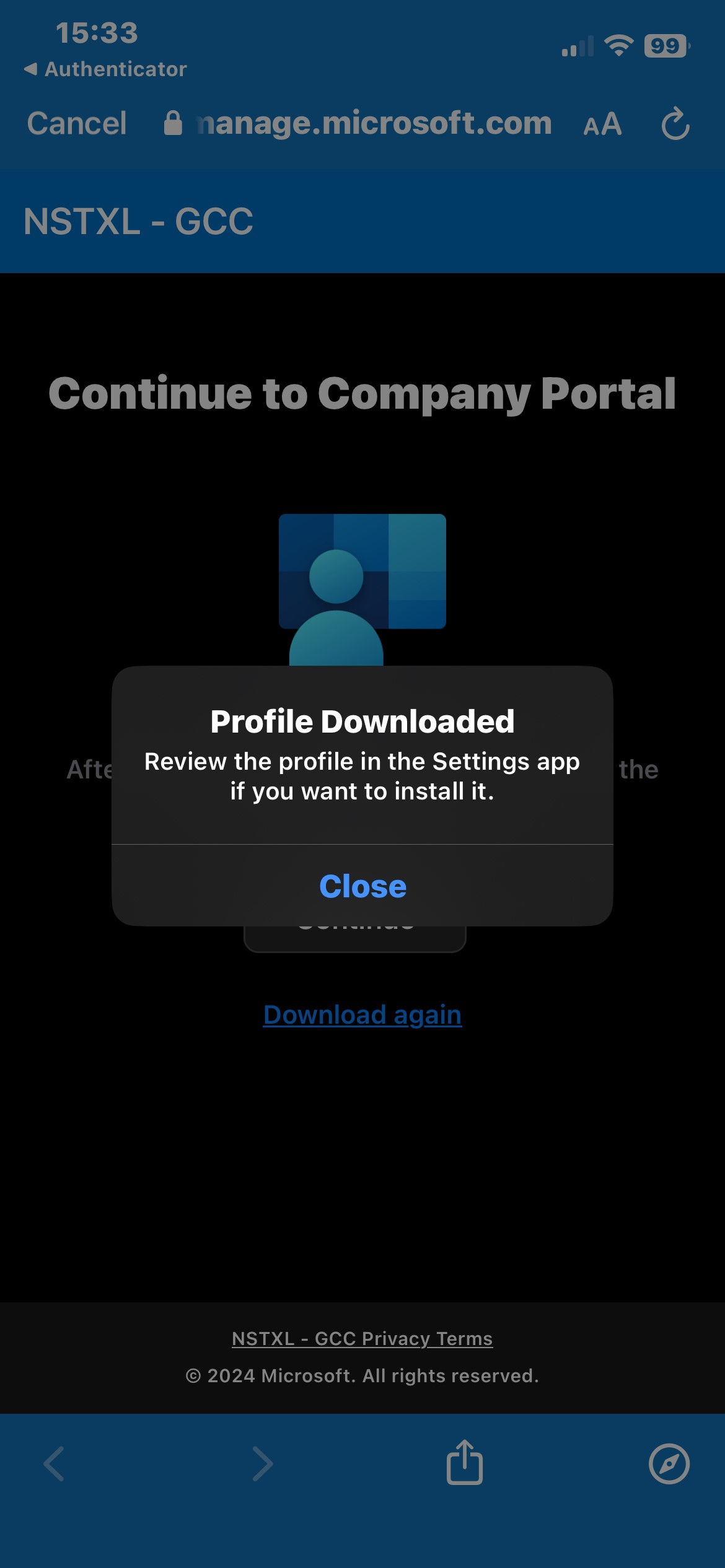
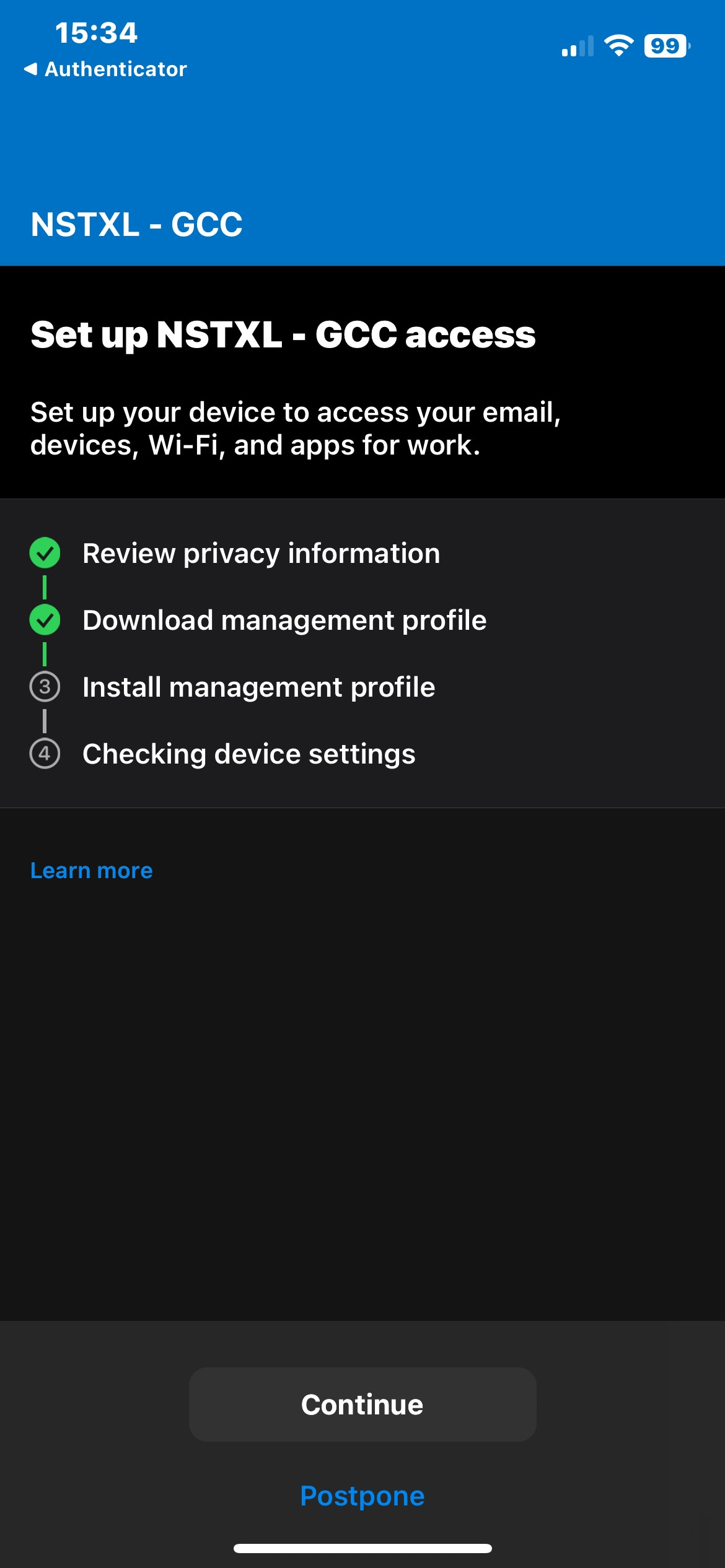
- Once downloaded, you will need to switch to the iOS Settings app to install it.
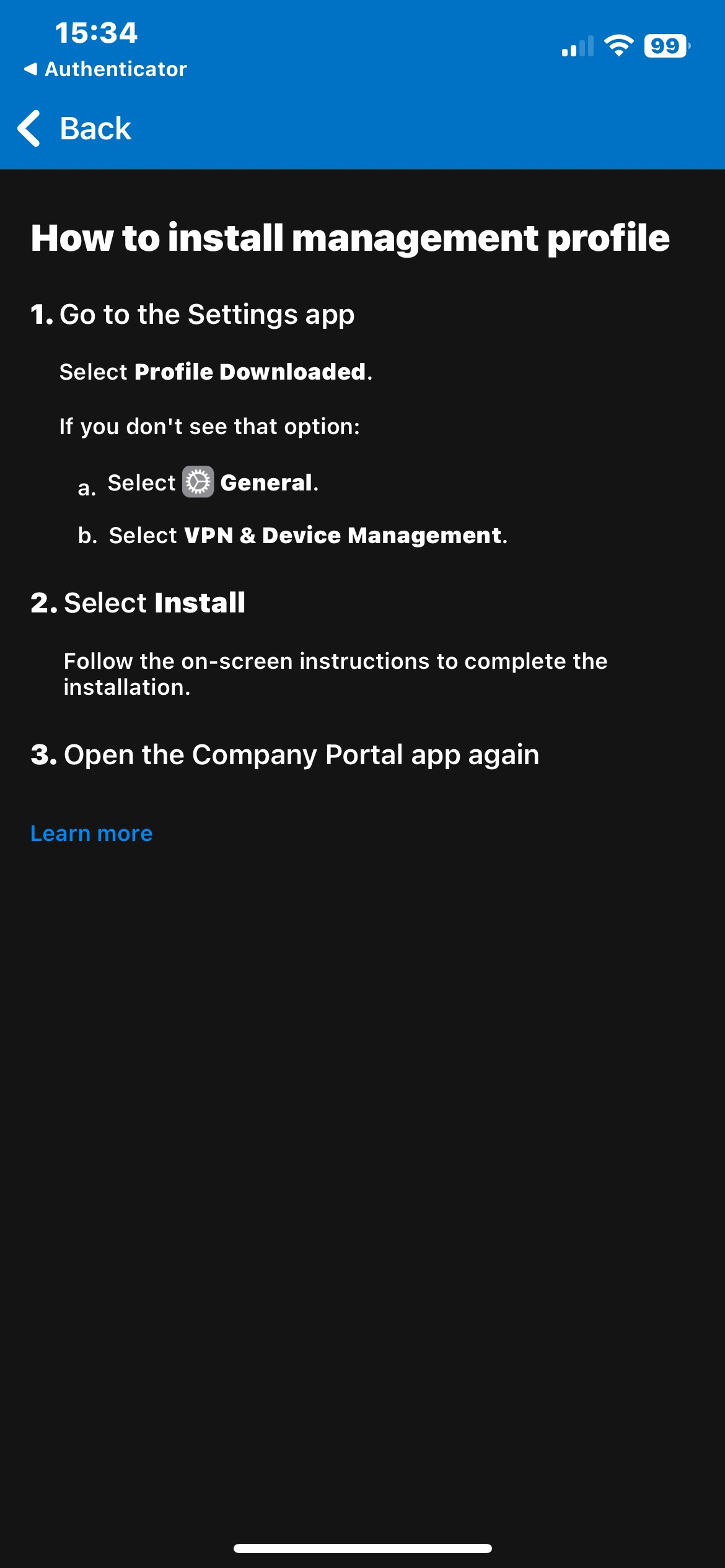
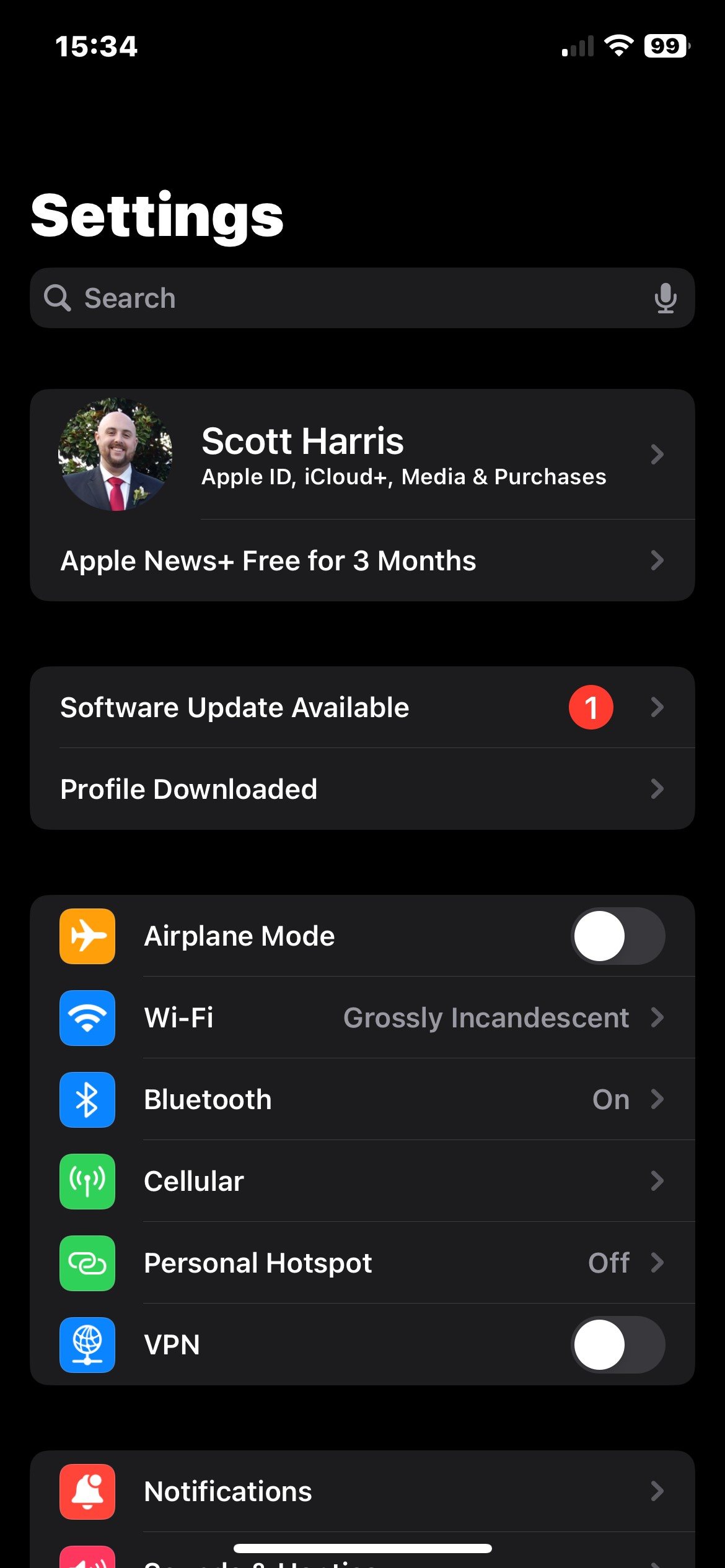
- Open Settings and select Profile Downloaded. If you don't see Profile Downloaded, scroll down and select General. In the General menu, scroll down and select VPN & Device Management where you should see the profile listed.
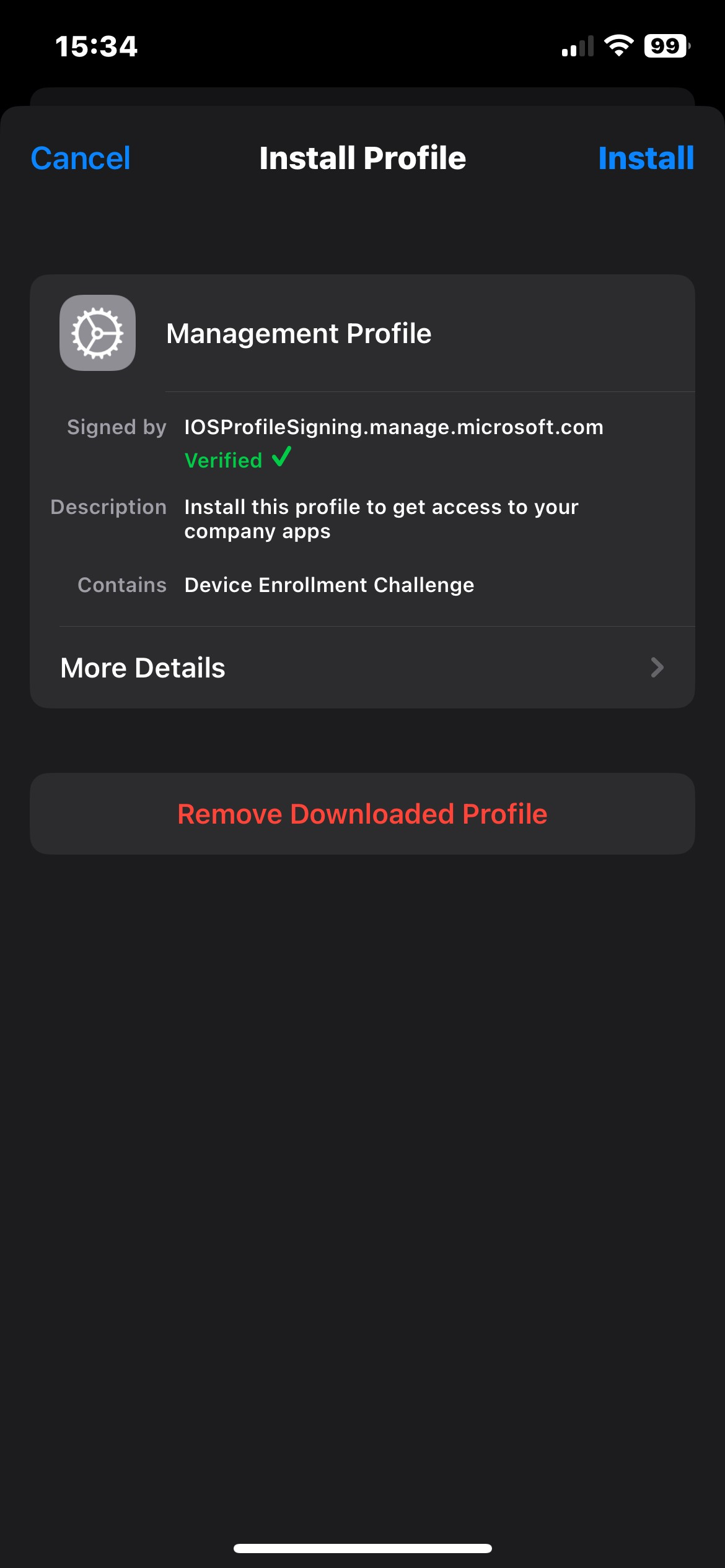
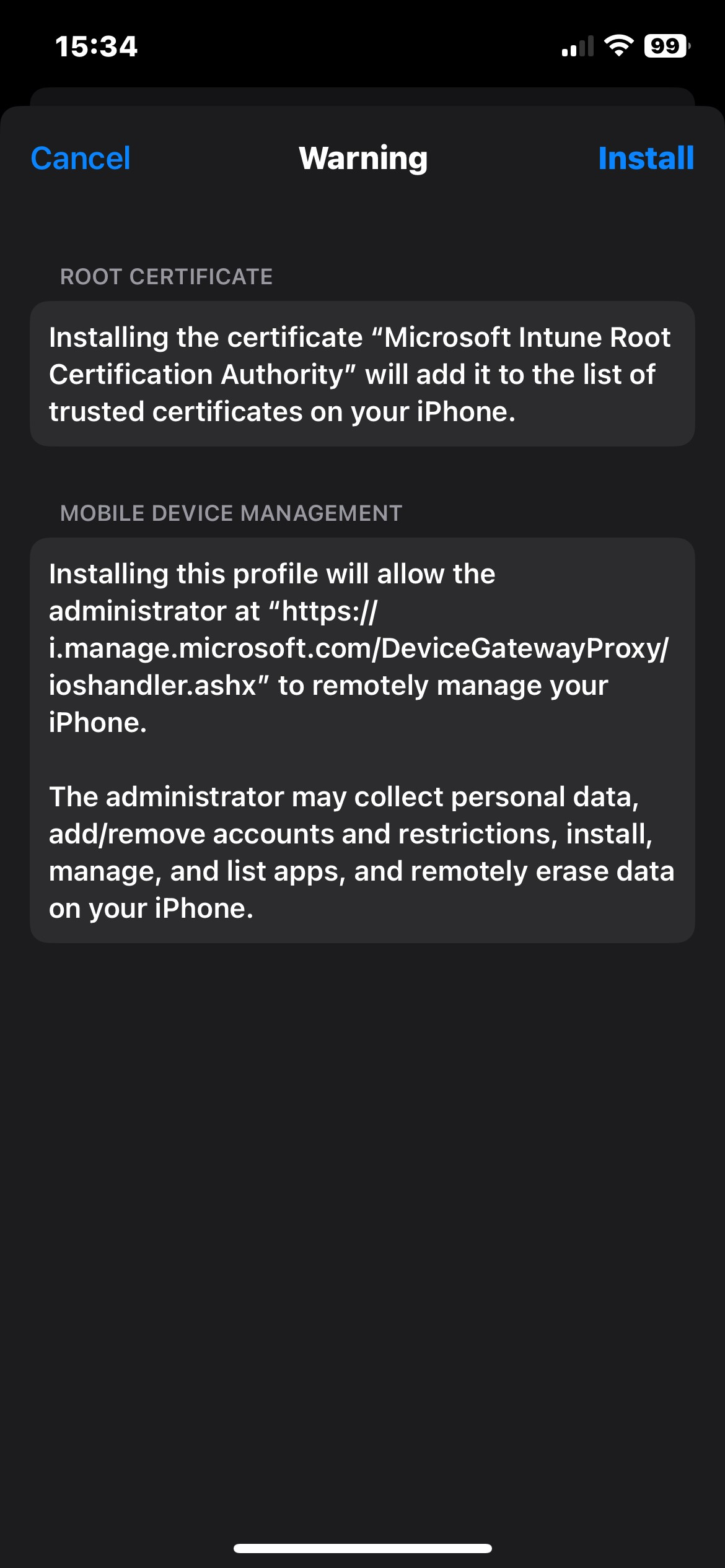
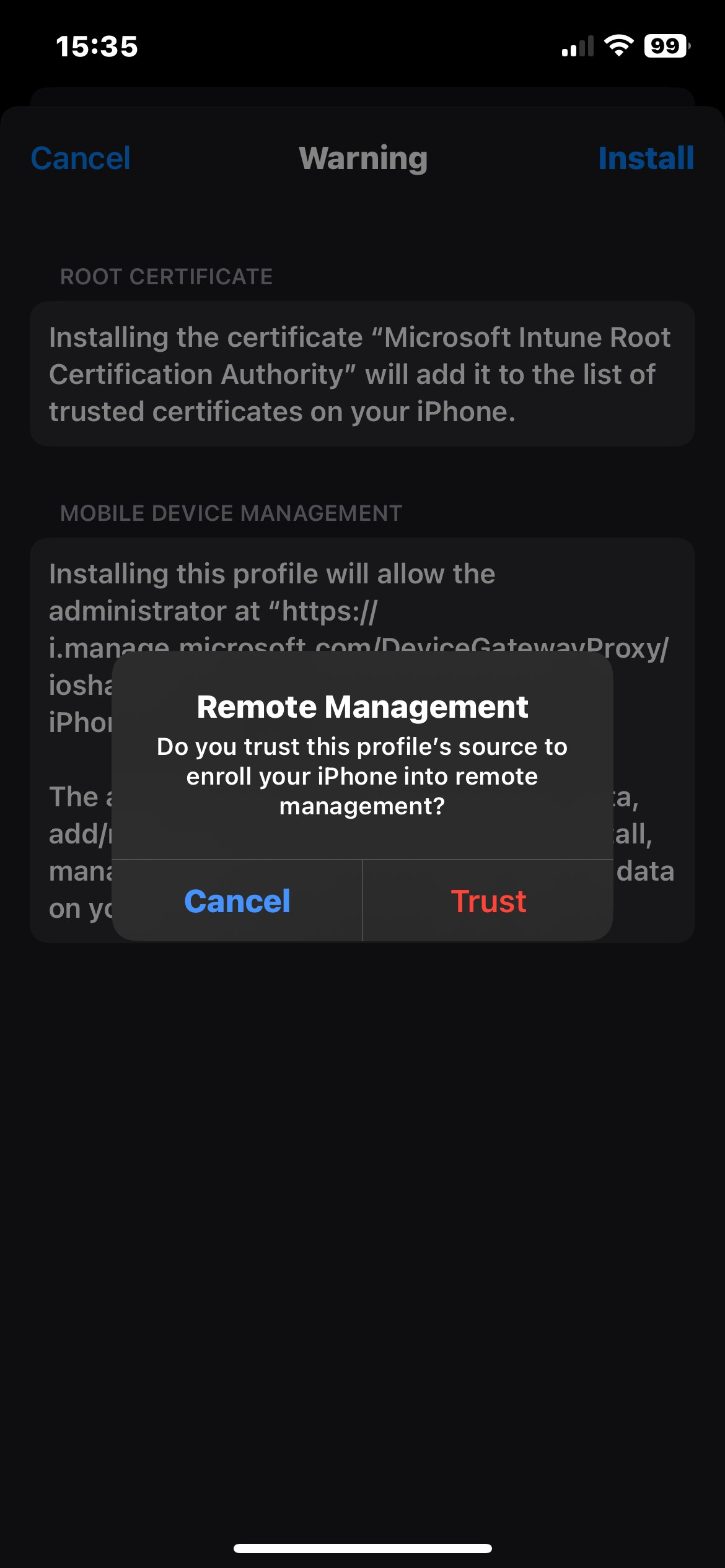
- Once you have found and opened the downloaded profile, select Install in the upper right until you are presented with prompt Remote Management. Then select Trust.
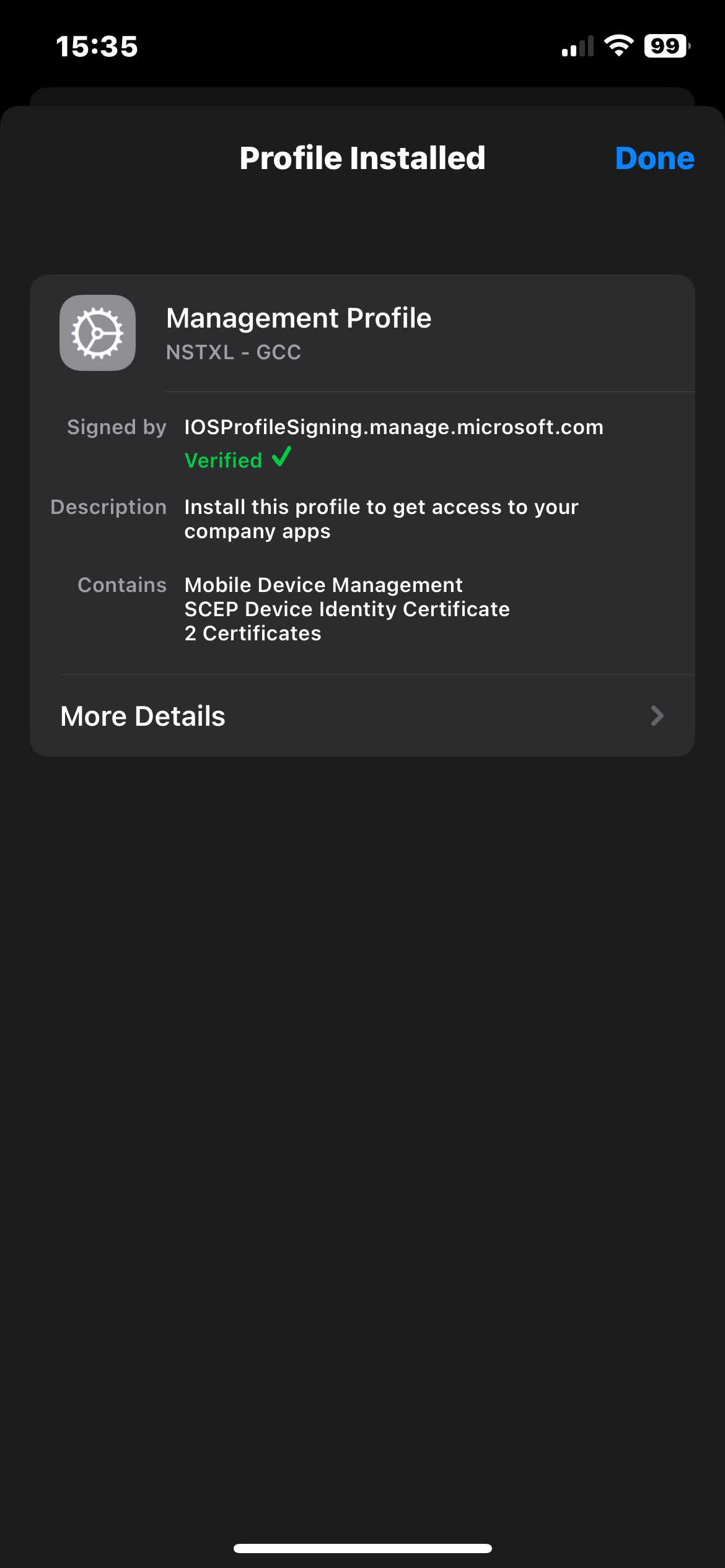
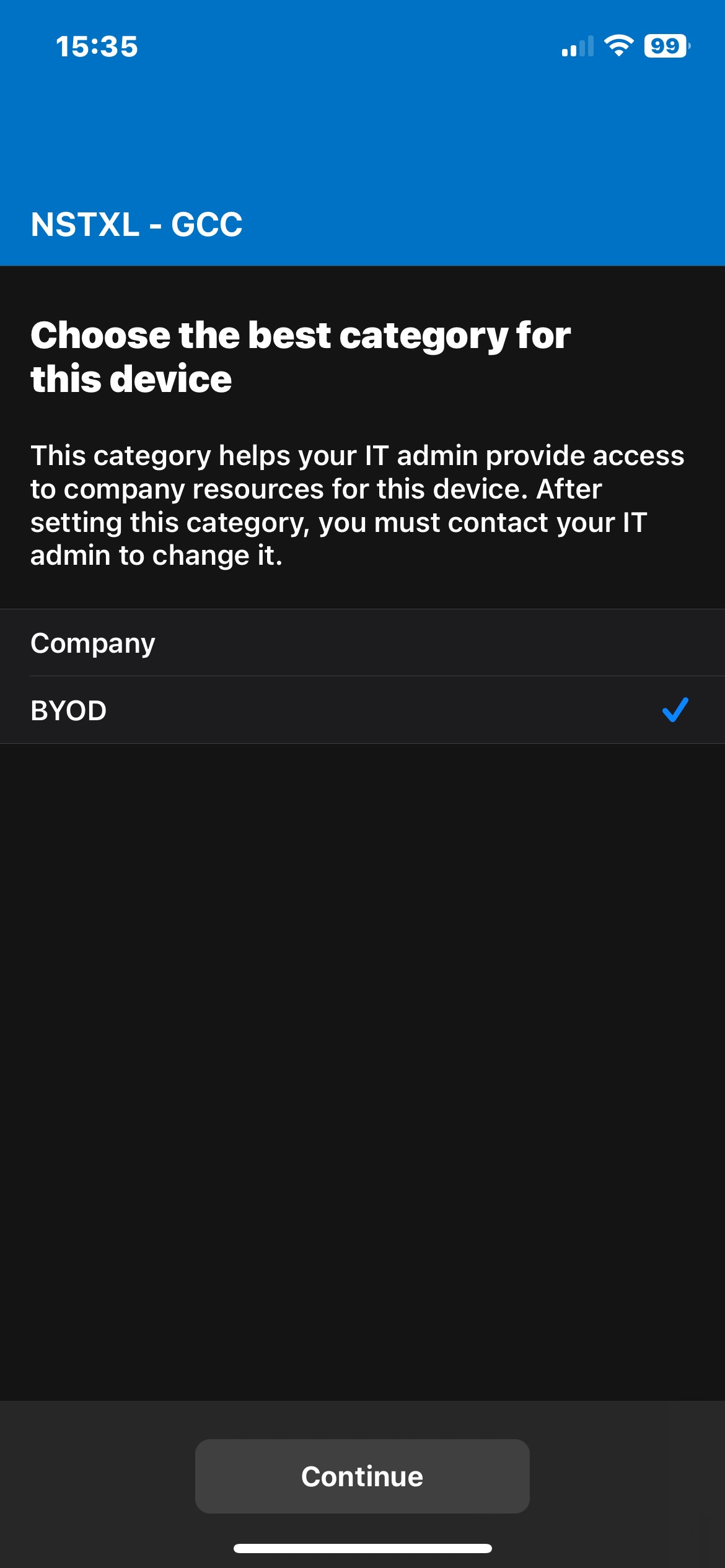
- Once installed, switch back to the Intune Company Portal app which should detect the installation and move forward. When prompted for the device category, select BYOD.
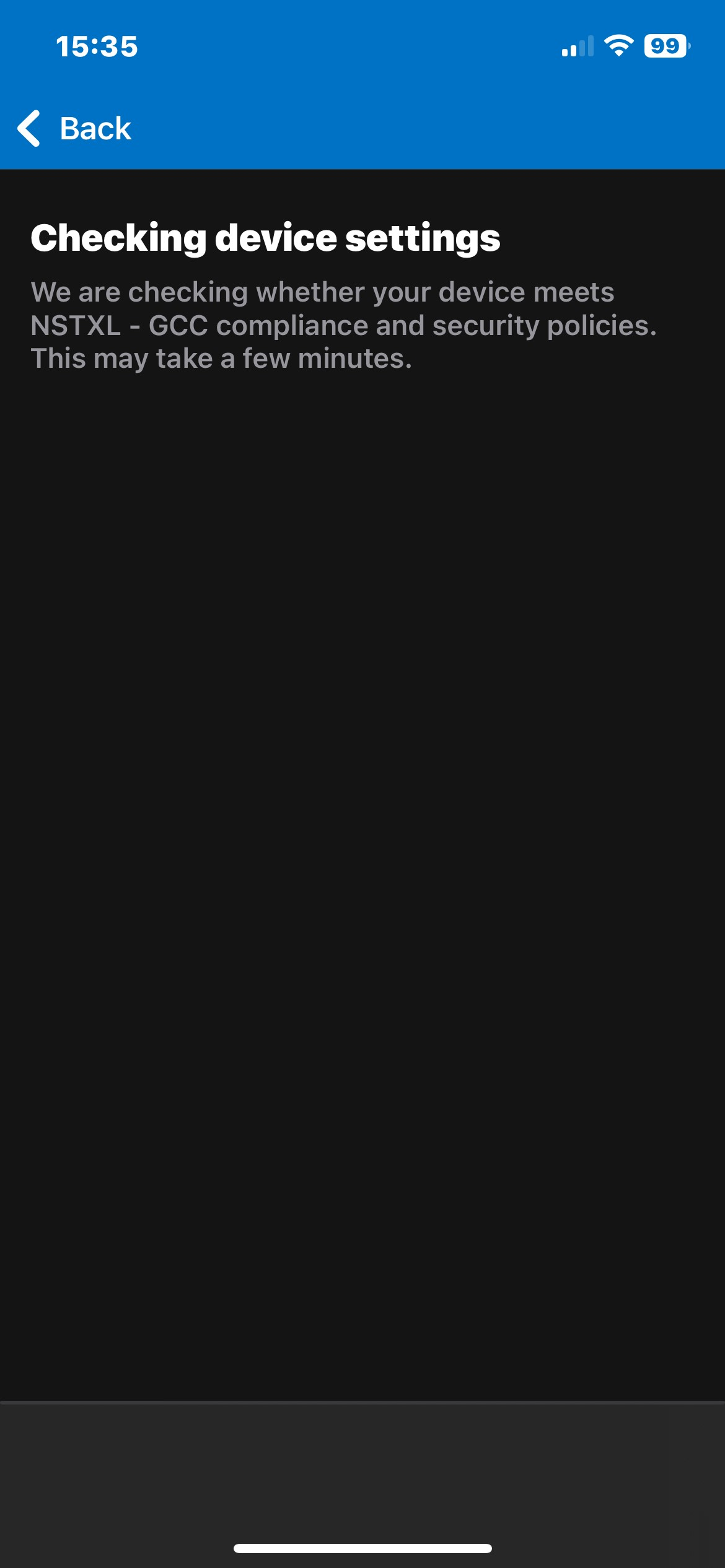
- The portal app will check a few final things before notifying you the process is complete.
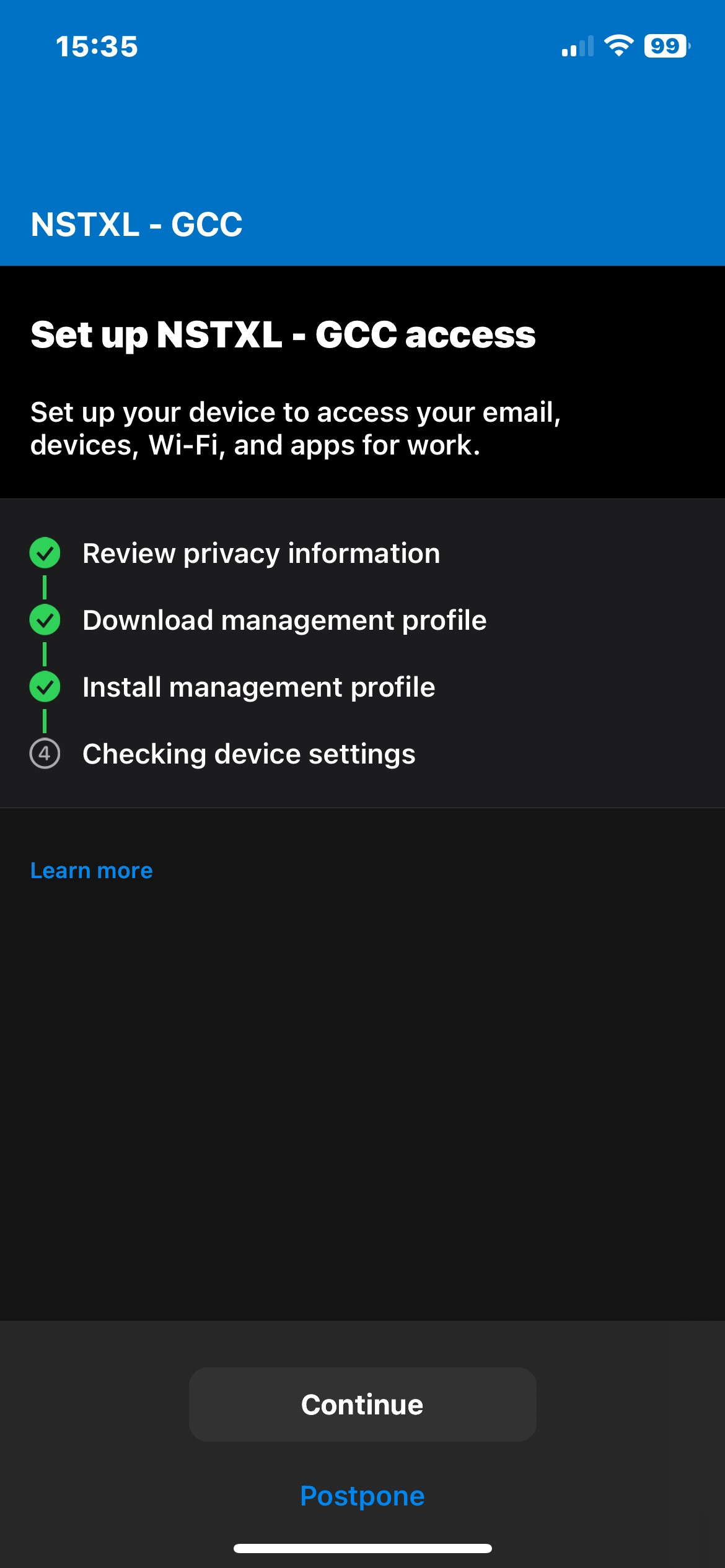
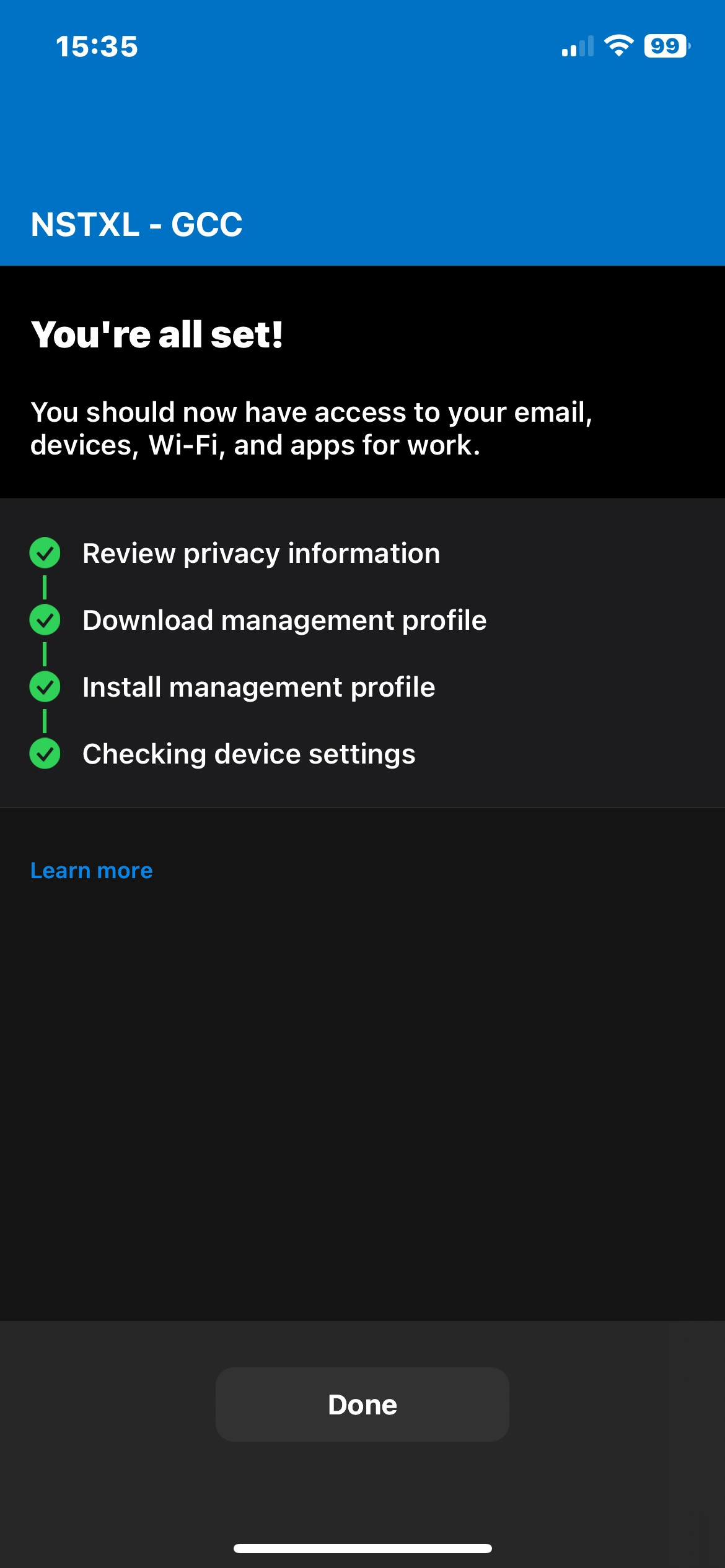
- Once you see the Apps page, you are finished and can safely close the portal app!