

Report Spam & Phishing Emails

Last updated: Jun 09, 2024
56
views

Hello, this article will walk you through reporting emails as spam and/or phishing.
With the suspected email open, and the Home tab selected, click on Report Message and select a type of report to make.
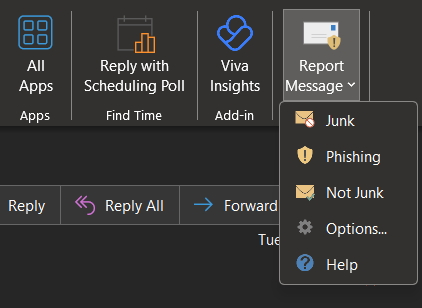
Depending on the type selected, a window may pop up with additional options or a text field to describe why you found the email suspicious.
Note that IT is able to view reports of reported messages, so you do not need to submit a helpdesk ticket in addition to reporting the message in Outlook.

