Add/Remove Members of Outlook Group (for Group Owners)

Last updated: Aug 05, 2024
46
views

Add/Remove Members of Outlook Group (for Group Owners)
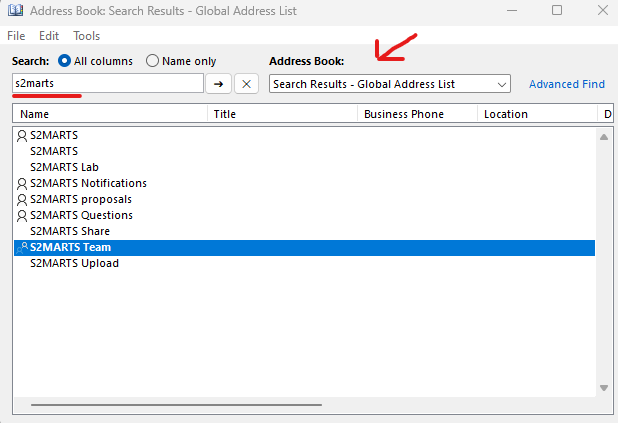
- In Outlook, on the top navigation bar, select “Address Book”

- Use the drop-down to ensure “Global Adress List” is selected, then use the search box and enter the name of the group.
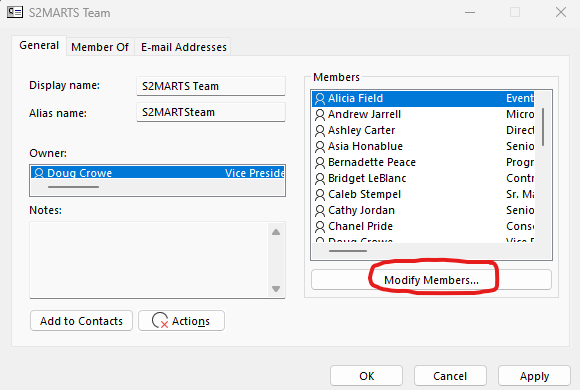
- Double-click on the group name, then select “Modify Members”
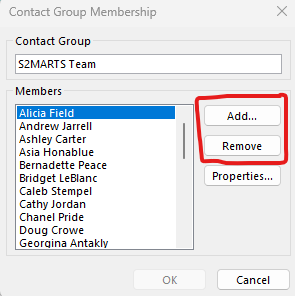
- From here, you’ll be able to Add/Remove users. Once finished making changes, click “OK”, then be sure to click “Apply” on the previous window.