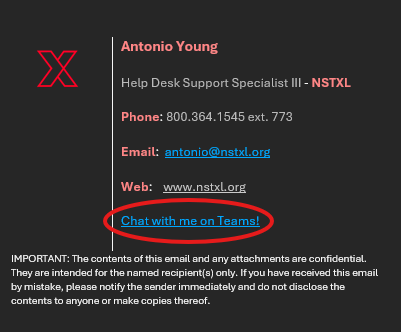
Teams chat URL for Email Signature
Classic Outlook (New Outlook Steps below)
1. Click on “File” in top-left corner.
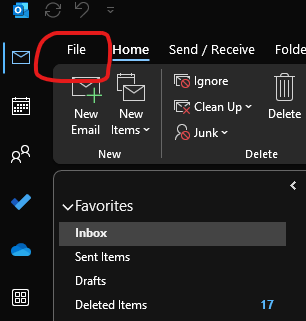
2. Select “Options” in bottom-left corner.
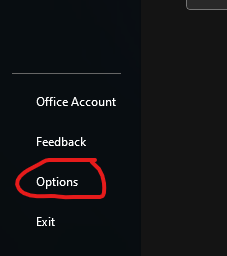
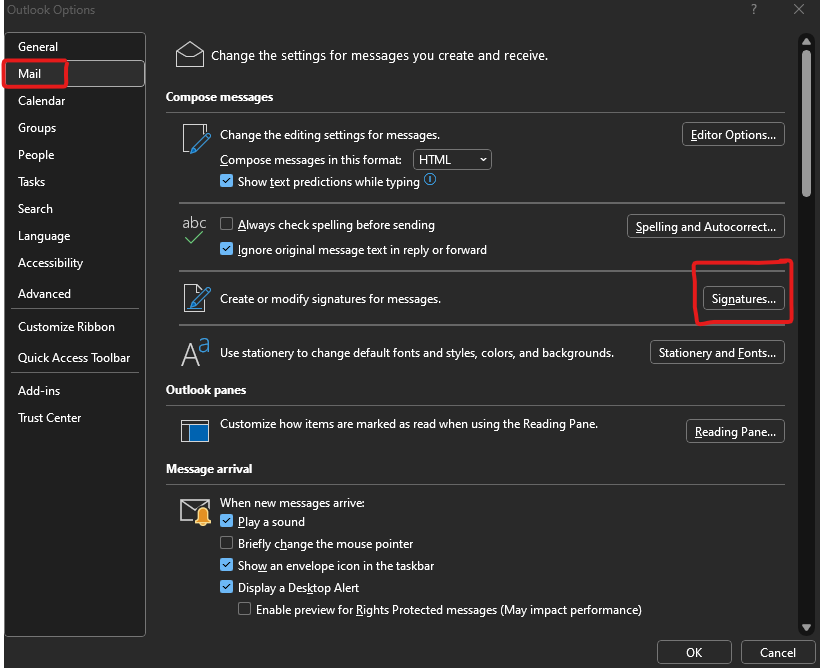
3. In Options, select “Mail” then “Signatures”
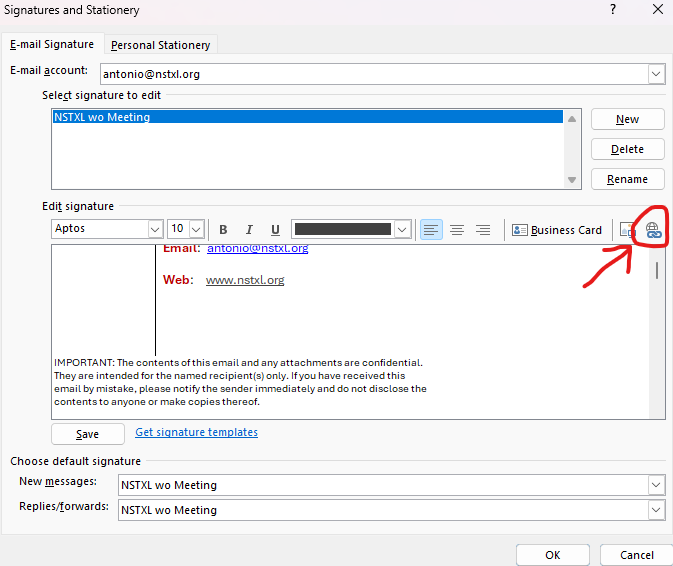
4. In the “Signatures and Stationery” window, select the “Insert Link” icon on the far-right
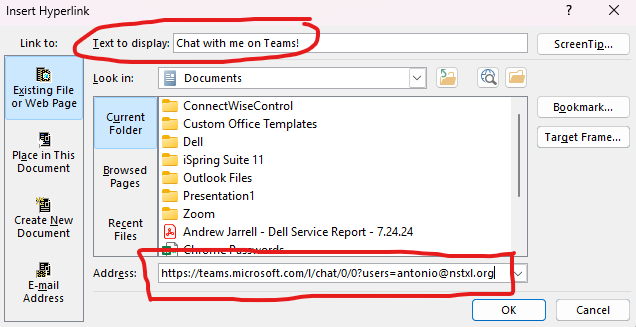
5. In the “Insert Hyperlink” window, enter “Chat with me on Teams!” in the “Text to display” box, then copy “https://teams.microsoft.com/l/chat/0/0?users=<your email address> “ (replace “<your email address>” with your email address)
Click OK, then OK again, then OK one more time to exit settings.
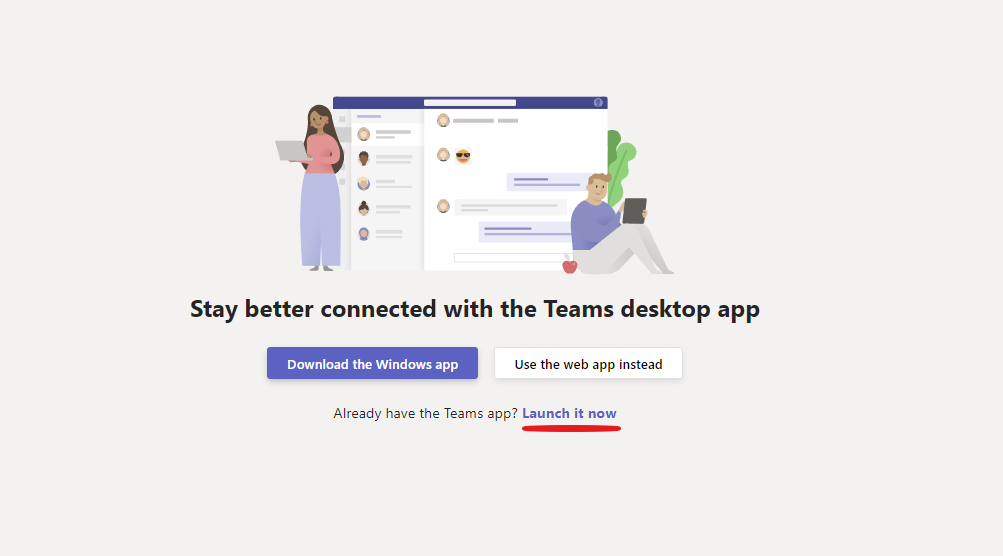
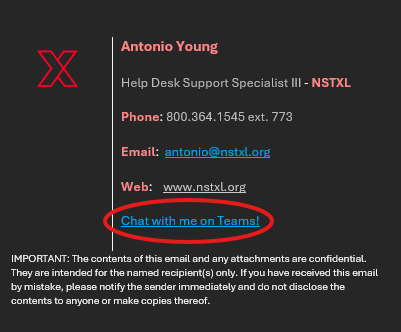
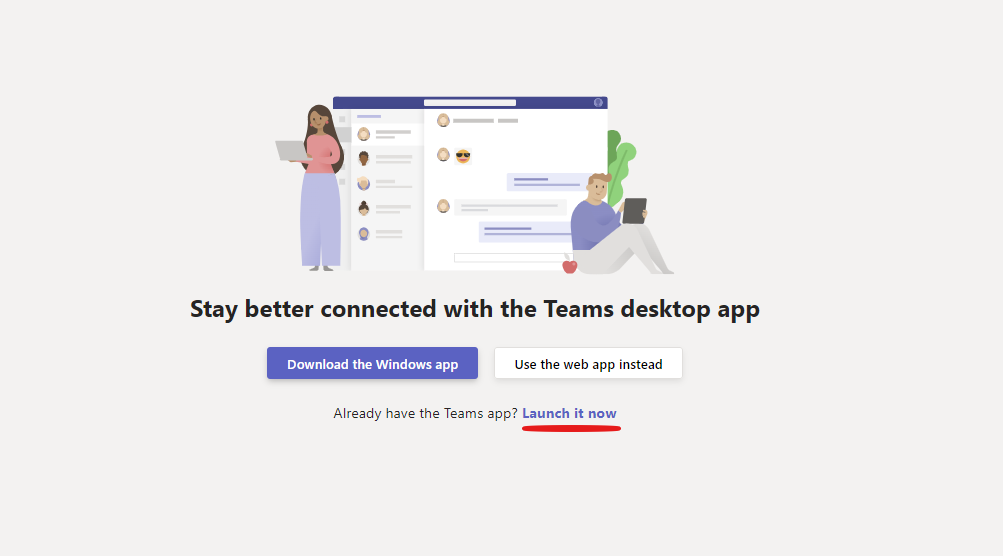
6. Your email signature should now show the URL link in it. Clicking the link should open a webpage that will ask to download, use web app, or launch Teams. If already signed into Teams, it should automatically redirect to the desktop app and open up a chat with you.
New Outlook
1. Click on the gear icon in the top-right corner to open Settings

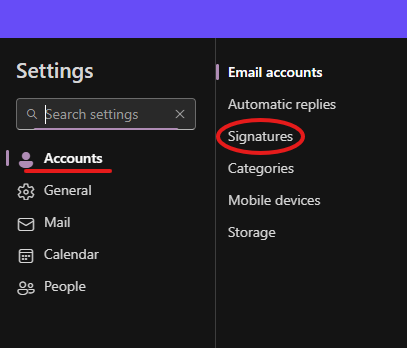
2. From “Accounts”, select “Signatures”
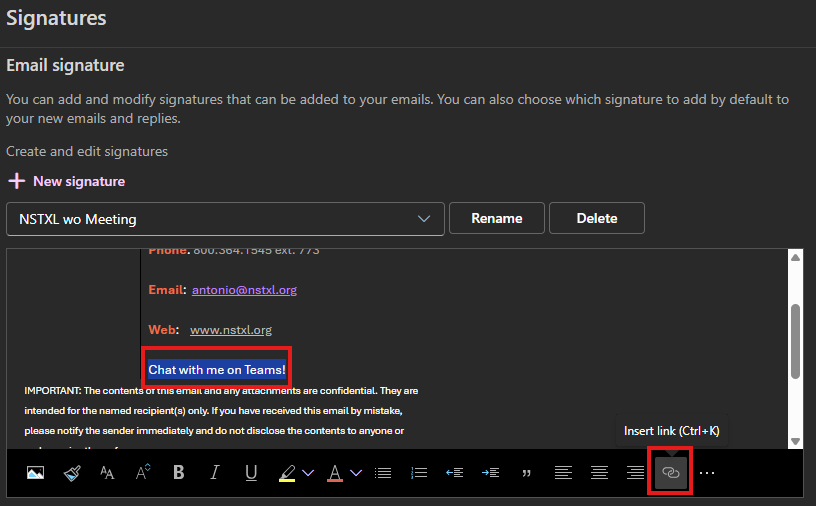
3. Type “Chat with me on Teams!” where you want the hyperlink to be in your Signature, then highlight the text and click the “Insert Link” icon in the bottom-right.
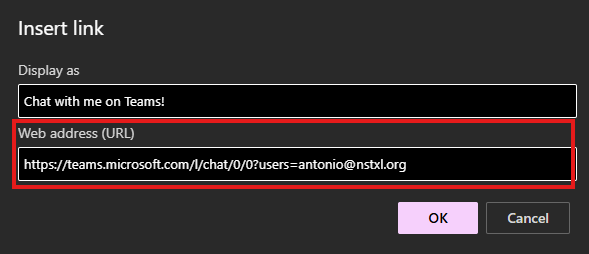
4. In the “Web Address (URL)” box, copy “https://teams.microsoft.com/l/chat/0/0?users=<your email address> “ (replace “<your email address>” with your email address).
Click OK, then Save, then you can close out of the Settings window.
5. Your email signature should now show the URL link in it. Clicking the link should open a webpage that will ask to download, use web app, or launch Teams. If already signed into Teams, it should automatically redirect to the desktop app and open up a chat with you.