

Create Booking Page and Add Link to Email Signature

Last updated: Apr 25, 2025
52
views

1. Go to https://www.microsoft365.com/apps?auth=2
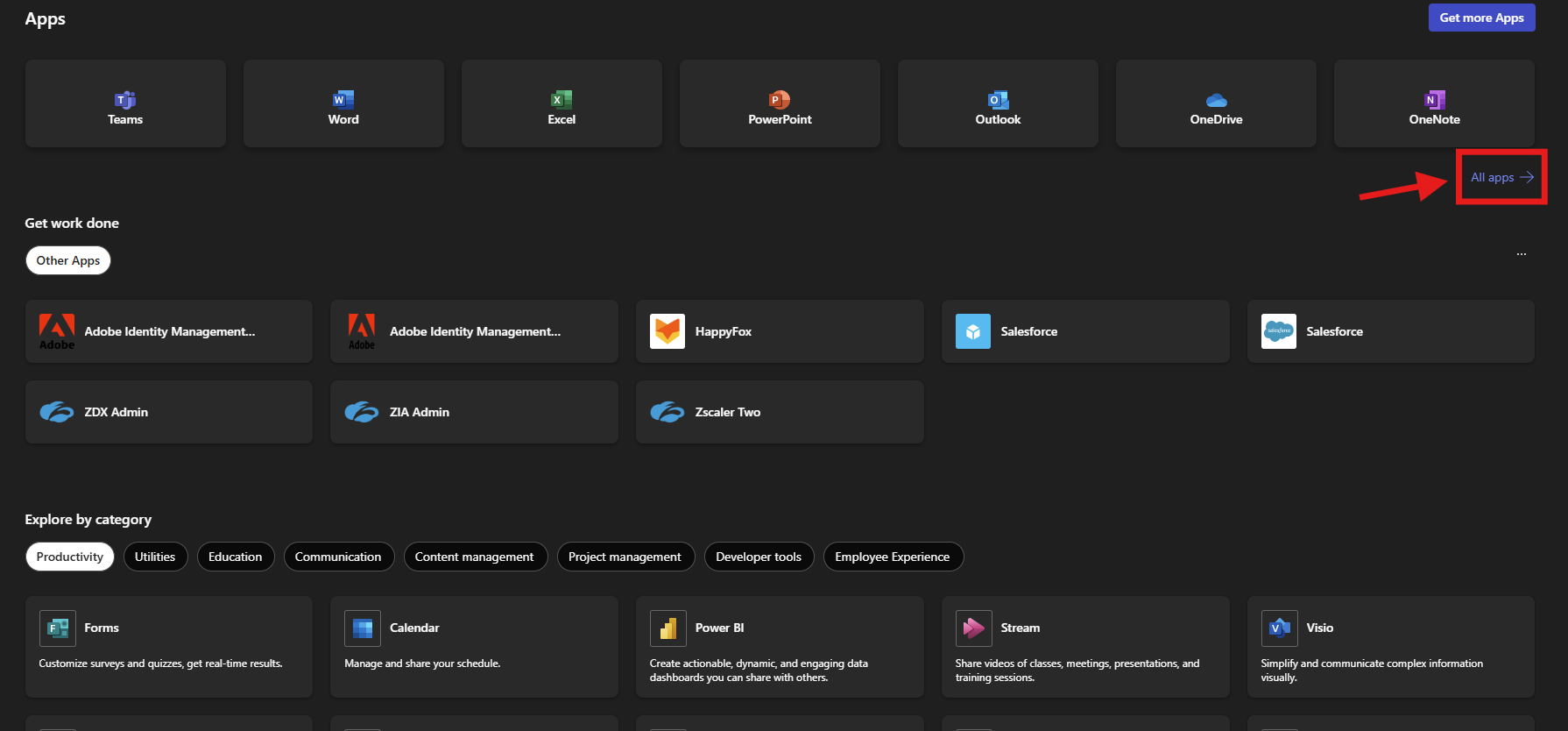
2. Expand "All apps"
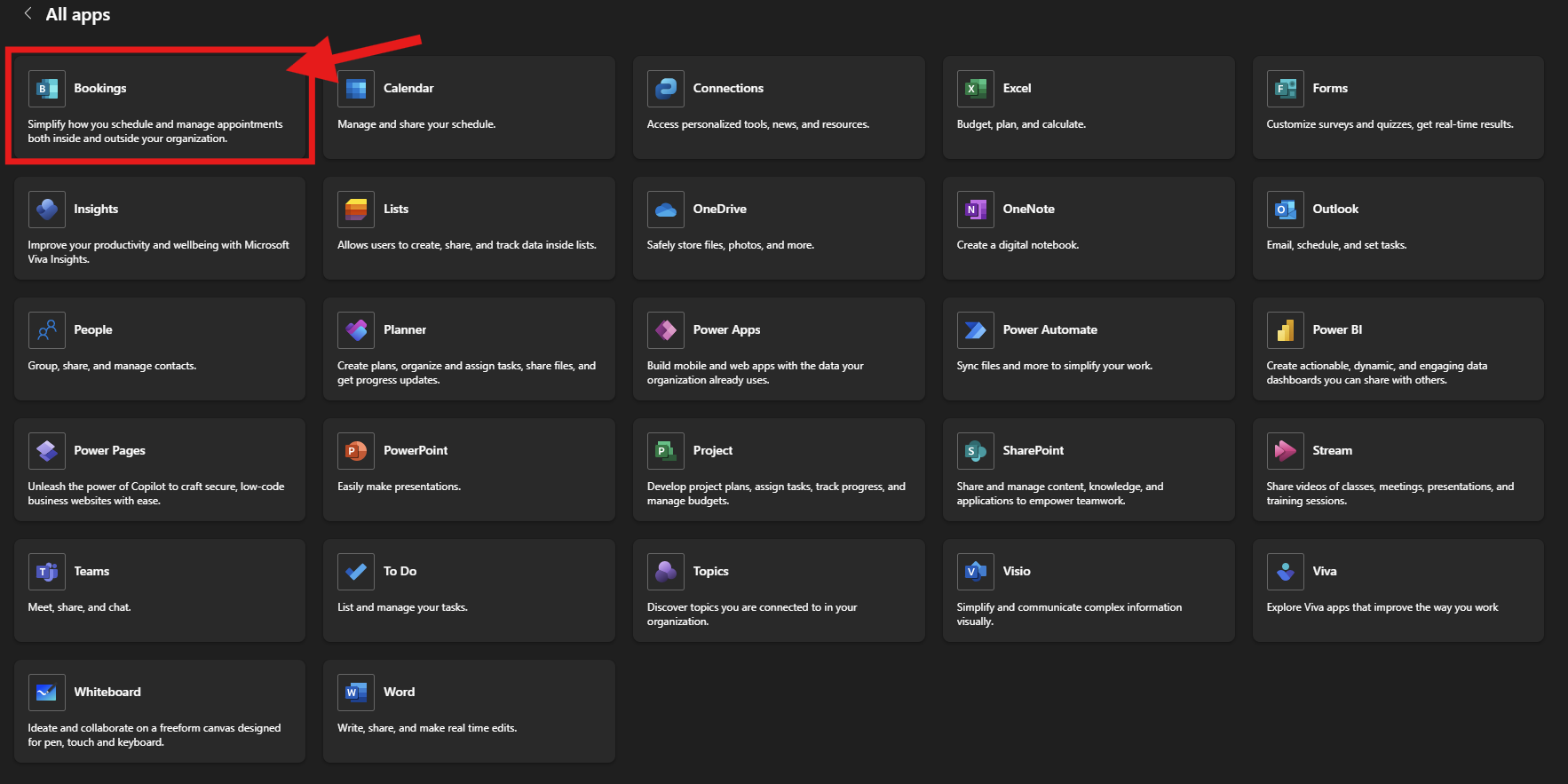
3. Select "Bookings"
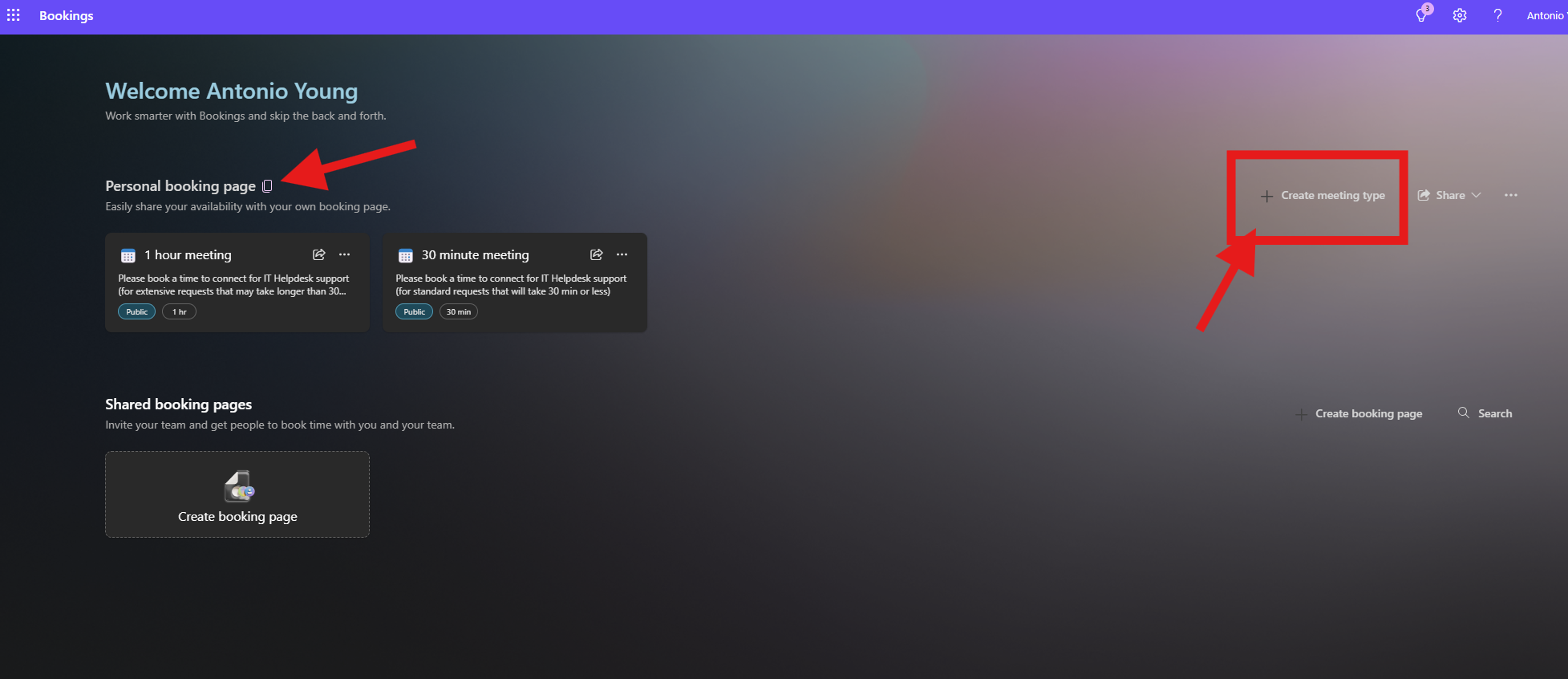
4. On the Bookings page, you'll need to add a meeting type first. Once done, copy the link to your personal booking page by clicking the copy icon.
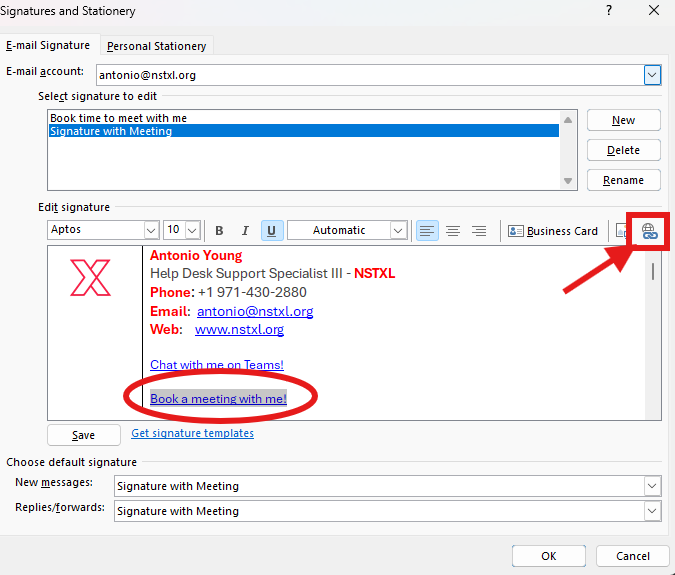
5. Once you've copied the link to your personal booking page, open your email signature to edit.
6. Type in "Book a meeting with me!" where you want the link in your email signature, then highlight the text and click on the icon that shows a globe and link.
7. Paste the link for your personal booking page in the "Address" box ("Text to display" should have your highlighted text).
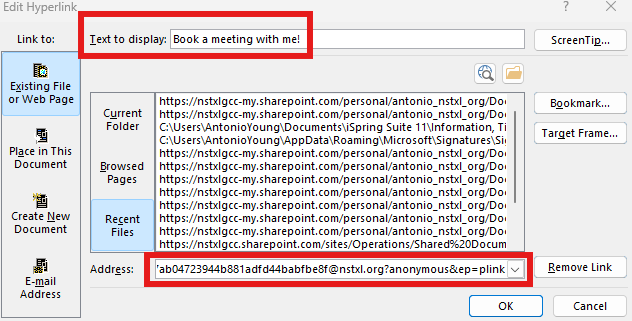
8. Select "OK" twice to save and close out of the pop-up windows and you're done!

